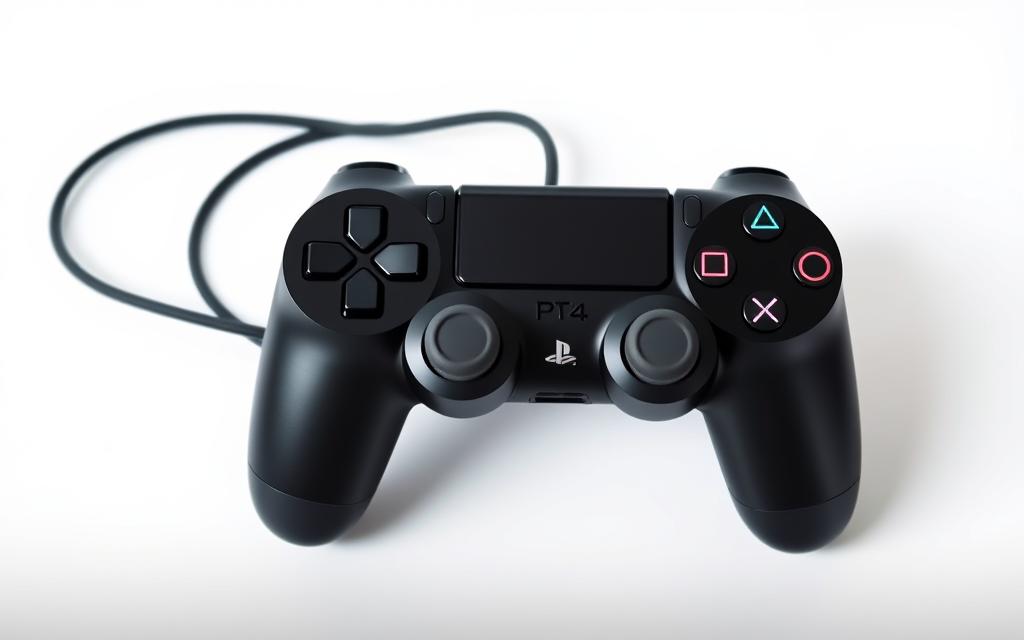
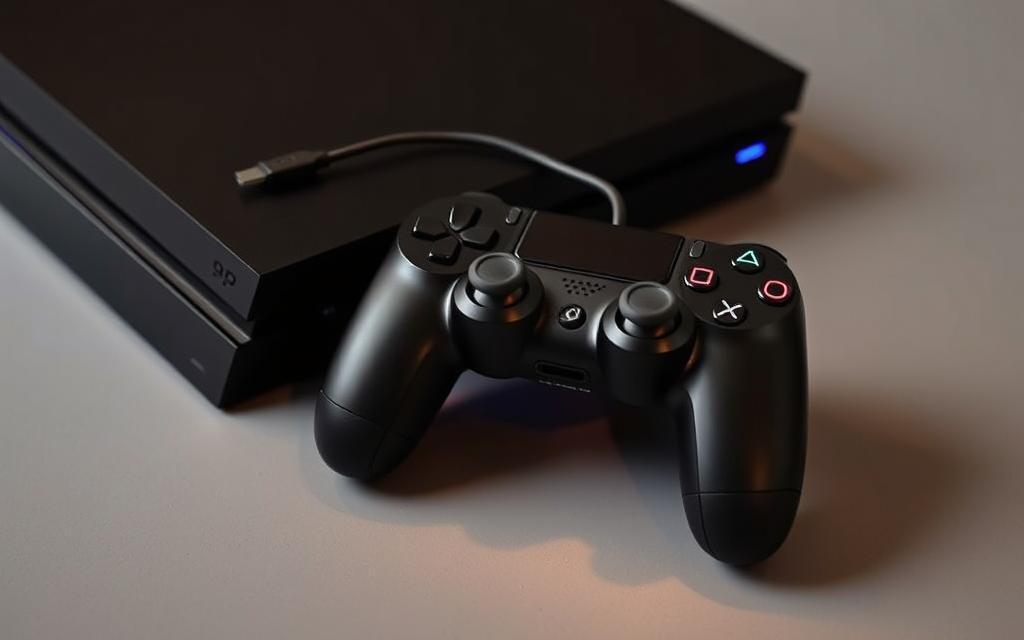
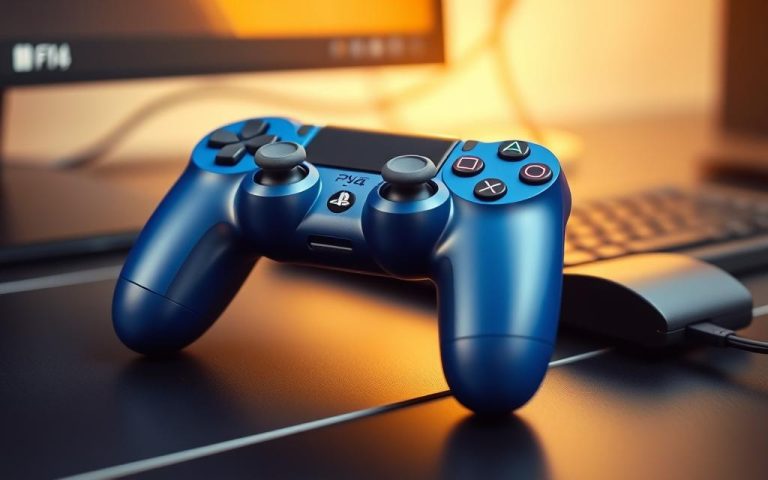
The PS4 has been a reliable gaming console, and its wireless controller remains a popular choice among gamers. Although many have upgraded to the PS5, the PS4 controller is still widely used. One of the key benefits of the PS4 controller is its versatility, allowing it to connect to various devices, including consoles, computers, and mobile devices.
To get the most out of your gaming experience, it’s essential to know how to pair your PS4 controller with your device. This comprehensive guide will walk you through the simple steps to sync your controller, ensuring a seamless gaming experience. By following this guide, you’ll be able to enjoy wireless gaming without frustration.
With this guide, you’ll learn the basics of connectivity and troubleshooting common issues that may prevent your controller from connecting properly. Whether you’re setting up a new controller or fixing connection problems, this guide has got you covered.
Understanding PS4 Controller Connectivity Basics
Before you start gaming on your PS4, it’s crucial to understand the basics of controller connectivity. The PS4 controller is more than just a device for playing games; it’s a key component that enhances your overall gaming experience.
What You’ll Need to Sync Your Controller
To sync your PS4 controller, you’ll need a USB cable for the initial connection. This cable not only helps in pairing the controller with your PS4 but also charges the controller.
The PS4 controller can be connected via USB or Bluetooth. Using a USB cable is the most straightforward method for the first-time setup, while Bluetooth offers more flexibility for wireless gaming.
Understanding the Controller’s Light Bar Indicators
The light bar on your PS4 controller is a vital indicator of its status. Different colors signify different player numbers and statuses, such as blue for player one, red for player two, and so on. A flashing white light indicates the controller is in pairing mode, while a yellow light shows it’s charging.
A solid blue light indicates the controller is connected as player one.
Red, green, and pink lights represent players two, three, and four, respectively.
A flashing white light means the controller is in pairing mode.
A yellow light indicates the controller is charging.
How to Sync PS4 Controller to Your PlayStation 4 Console
Syncing your PS4 controller with your console is a straightforward process that enhances your gaming experience. To begin, you’ll need to understand the different methods available for connecting your controller.
Using a USB Cable for First-Time Connection
For the initial connection, using a USB cable is recommended. This method is simple and ensures a stable connection. Connect your PS4 controller to your console using a USB cable, and the console will recognize the controller.
Connecting Additional Controllers to Your PS4
If you have additional controllers, you can connect them to your PS4 via Bluetooth. Navigate to the Devices menu, select Bluetooth Devices, and choose the controller you want to connect. Ensure that the controller is in pairing mode.
Setting Up Controller Preferences on Your Console
To customize your gaming experience, access the Settings menu on your PS4, then navigate to Devices > Controllers. Here, you can adjust various options such as vibration intensity, light bar brightness, and button assignments to create a personalized setup. You can also configure audio output settings to direct game audio through the controller’s built-in speaker or connected headphones.
Controller Preference
Description
Vibration Intensity
Adjust the vibration level to your liking
Light Bar Brightness
Customize the brightness of the controller’s light bar
Button Assignments
Remap buttons to suit your gaming style
Connecting Your PS4 Controller to Other Devices
Expanding your PS4 controller’s connectivity beyond the console opens up new gaming possibilities. You can enjoy your favorite games on various devices, from PCs and Macs to Android smartphones and tablets.
How to Pair with PC or Mac via Bluetooth
To connect your PS4 controller to a PC or Mac, you’ll need to use Bluetooth. First, ensure your controller is in pairing mode by pressing and holding the PS and Share buttons until the light bar flashes. Then, on your PC or Mac, go to Bluetooth settings and search for available devices. Select “Wireless Controller” to complete the pairing process.
Many Android devices support PS4 controller connectivity via Bluetooth. Put your controller in pairing mode, then navigate to your Android device’s Bluetooth settings. Look for “Wireless Controller” in the list of available devices and select it to pair.
Using Third-Party Software for Enhanced Compatibility
For enhanced compatibility, especially with PC games, consider using third-party software like DS4Windows. This software allows your PS4 controller to emulate an Xbox 360 controller, making it compatible with a wider range of games.
Troubleshooting Common PS4 Controller Connection Issues
If your PS4 controller is not connecting properly, there are several potential causes and fixes to explore. Ensuring a stable connection between your controller and PS4 is crucial for an uninterrupted gaming experience.
How to Reset Your PS4 Controller
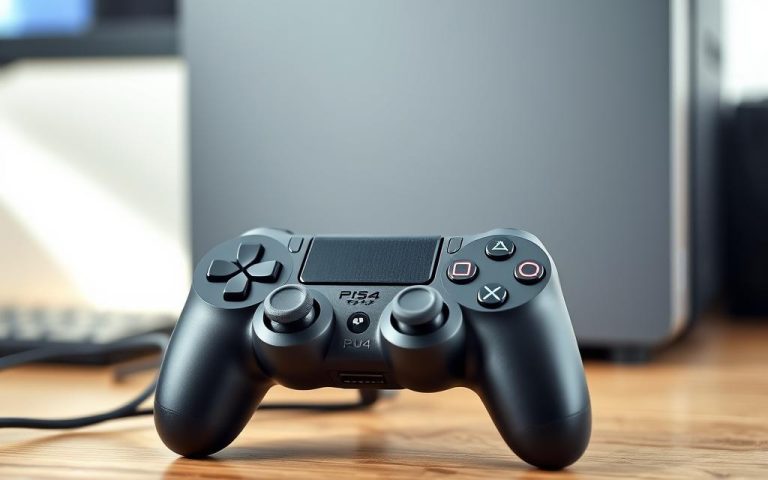
Resetting your PS4 controller can resolve many connectivity issues. To do this, locate the small reset button on the back of the controller, near the L2 button. Use a small pin or paperclip to press the button. This will restore the controller to its default settings, potentially fixing pairing problems.
Fixing Bluetooth Pairing Problems
Bluetooth pairing issues can often be resolved by restarting both your PS4 and controller. If the problem persists, try resetting the controller or checking for interference from other Bluetooth devices. Ensuring your controller’s battery is adequately charged is also crucial, as a low battery can cause connectivity issues.
Resolving Charging and Battery Issues
Battery issues are common with PS4 controllers. To diagnose charging problems, check the light bar on your controller; a yellow light indicates it is charging. If this light does not appear, try using a different cable or charging source. Avoid using high-amperage chargers, as they can damage the battery over time.
Issue
Potential Cause
Solution
Controller not charging
Faulty cable or charging port
Try a different cable or charging source
Wireless connectivity issues
Low battery or interference
Charge the controller or reduce Bluetooth interference
Controller not pairing
Controller not reset or PS4 not restarted
Reset the controller and restart the PS4
Conclusion
Connecting your PS4 controller to your preferred device is simpler than you think, and this guide shows you how. Throughout this guide, we’ve covered the essential aspects of syncing your PS4 controller to various devices, from the PlayStation console to PCs, Macs, and mobile devices. The initial connection requires a USB cable, while subsequent connections can be made wirelessly for convenience. To ensure a seamless gaming experience, make sure to customize your controller settings based on the device and games you’re playing. By mastering these steps to connect your controller, you can enjoy your favorite games with precision and comfort. This versatility makes the PS4 controller an excellent investment for gamers across multiple platforms.
FAQ
What is the easiest way to connect my DualShock 4 controller to my PS4 console?
The simplest method is to use a USB cable for the initial connection. Simply plug the cable into both the controller and the console, and the PS4 will automatically pair the device.
Can I connect multiple PS4 controllers to my console?
Yes, you can connect up to four PS4 controllers to your console. To do this, go to the PS4 settings, select “Devices,” and then “Bluetooth Devices.” From there, you can pair additional controllers.
How do I know if my PS4 controller is in pairing mode?
When you press and hold the PS button and the Share button simultaneously, the light bar on the controller will start blinking, indicating that it’s in pairing mode.
Why won’t my PS4 controller connect to my console via Bluetooth?
If your PS4 controller won’t connect via Bluetooth, try resetting the controller by inserting a small pin into the reset hole on the back. Then, attempt to pair it again.
Can I use my PS4 controller with devices other than my PS4 console?
Yes, you can use your PS4 controller with PCs, Macs, Android smartphones, and tablets via Bluetooth. Some devices may require additional software for compatibility.
What do the different light bar colors on my PS4 controller indicate?
The light bar on your PS4 controller indicates the player number assigned to the controller. Different colors represent different players, making it easier to identify who’s playing.
Why is my PS4 controller not charging?
If your PS4 controller isn’t charging, check the USB cable for damage, ensure the charging port is clean, and try using a different power source or USB port.
The PS4 console remains a popular choice among gamers in the UK, thanks to its extensive game library and affordable price point. Despite the release of the PS5, the PS4 continues to offer great value for those looking for a quality gaming experience. This comprehensive guide will explore the current PS4 prices in the UK…
Transform your computer gaming experience by connecting your DualShock™4 controller to your PC. This simple step can elevate your gaming sessions, providing the comfort and familiarity of console gaming on your computer. Connecting your PS4 controller to your PC can be achieved through various methods, including wired and wireless connections. For a seamless gaming experience,…
The gaming community is abuzz with the release of Marvel Rivals, a hero-shooter game developed by NetEase Games. As excitement builds, a pressing question remains: is Marvel Rivals available on PS4 consoles? This comprehensive guide will explore the official status of Marvel Rivals across different gaming platforms, with a particular focus on PS4 compatibility. We…
EA Sports has recently released College Football25, generating significant buzz among football fans. This game marks a major comeback for college football video games after years of absence. With over $500 million in sales within its first month, it’s clear that fans have been eagerly waiting for this release. The new college football video game…
The PS5 offers extensive backward compatibility, allowing gamers to enjoy their PS4 game library on the new console. Understanding how this compatibility works is crucial for gamers transitioning from PS4 to PS5. This feature is a significant advantage, preserving access to your existing games library. Most PS4 games are compatible with the PS5, with some…
Gaming on a computer can be a vastly different experience compared to using a console. While traditional mouse and keyboard setups are common, some games are more enjoyable with a controller. Using a PS4 controller with your PC can enhance your gaming experience, offering more comfort and better control for certain types of games. This…