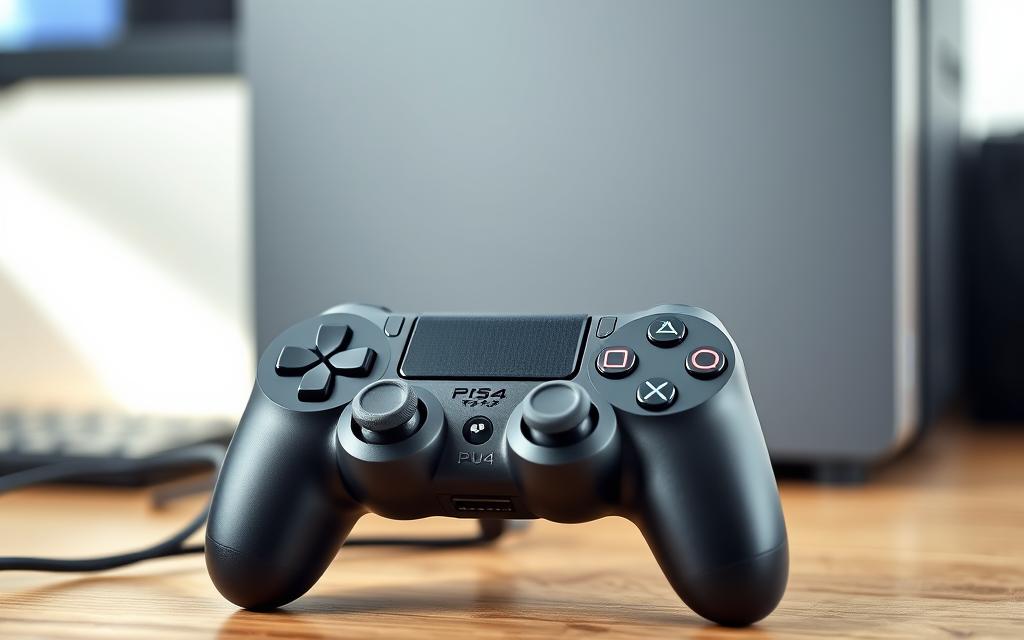
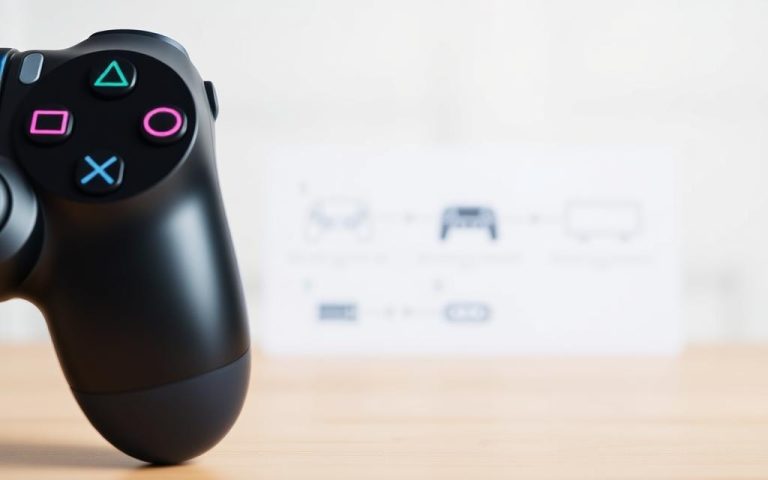
Transform your computer gaming experience by connecting your DualShock™4 controller to your PC. This simple step can elevate your gaming sessions, providing the comfort and familiarity of console gaming on your computer.
Connecting your PS4 controller to your PC can be achieved through various methods, including wired and wireless connections. For a seamless gaming experience, understanding the compatibility between PlayStation controllers and PC systems is crucial. You can connect your PS4 controller via Bluetooth or using a USB cable, and utilize software tools like Steam or DS4Windows to enhance controller functionality.
By the end of this guide, you’ll be able to enjoy your favorite PC games with the comfort of your PS4 controller, enhancing your overall gaming experience on your computer.
Understanding PS4 Controller Compatibility with PC
Using a PS4 controller on PC can enhance your gaming experience. The PS4 controller offers a comfortable and familiar way to play games on your computer.
Benefits of Using a PS4 Controller for PC Gaming
The PS4 controller provides several benefits for PC gamers. It offers excellent compatibility with Windows operating systems, particularly Windows 10 and newer versions. The ergonomic design of the controller makes it ideal for extended gaming sessions.
Analog sticks and pressure-sensitive buttons enhance gameplay in certain genres.
The touchpad on the DualShock 4 controller can be used for various in-game actions.
What You’ll Need Before Getting Started
Before connecting your PS4 controller to PC, you’ll need either a micro-USB cable for a wired connection or Bluetooth capability on your computer for a wireless connection.
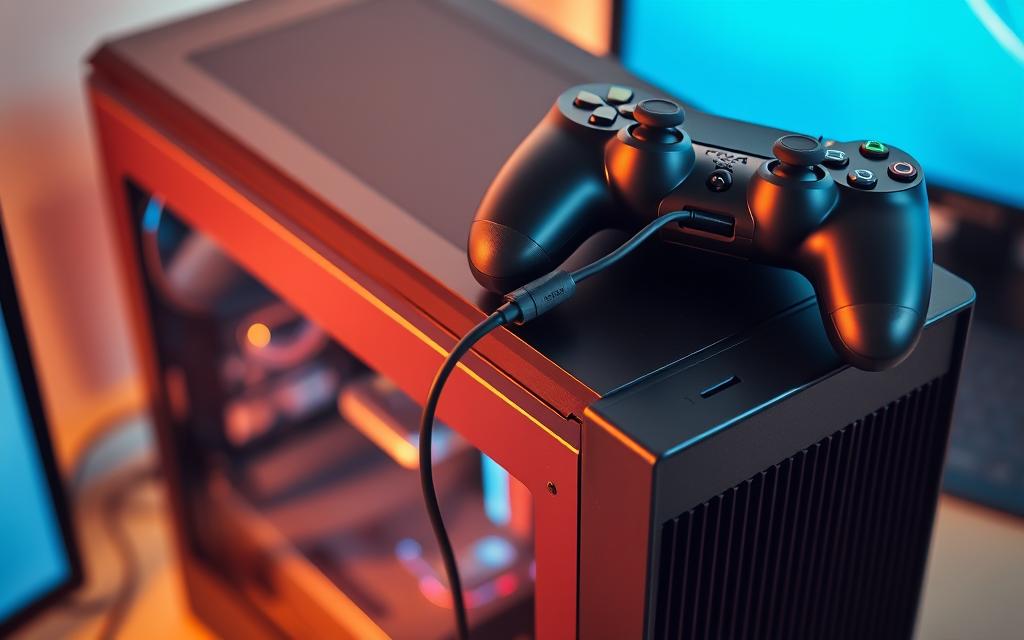
To connect your PS4 controller to your PC, a simple USB cable connection is all you need. This method is straightforward and works well for most users. Using a Micro-USB to USB cable, connect one side to your PS4 controller and the other to the USB port in your PC.
Step-by-Step Wired Connection Process
The wired connection method is the most straightforward way to pair your PS4 controller to your PC, requiring minimal setup and providing instant recognition in most cases. To connect via USB, you’ll need a micro-USB to USB-A cable, which should be plugged into an available USB port on your computer. When properly connected, your controller’s light bar will typically change to a steady color.
Advantages of Using a Wired Connection
Using a wired connection eliminates potential latency issues that might occur with wireless connections, making it ideal for competitive gaming. A USB connection also charges your controller while you play, ensuring you won’t run out of battery during extended gaming sessions.
Connecting Your PS4 Controller via Bluetooth
Pairing your PS4 controller with your PC using Bluetooth is a simple and effective way to game without cables. This method provides the freedom to game from a distance, enhancing your overall gaming experience.
Preparing Your Controller for Bluetooth Pairing
To initiate Bluetooth pairing mode on your PS4 controller, simultaneously press and hold the Share button and the PS button until the light bar begins flashing rapidly. This distinctive double-blink pattern indicates that your controller is ready to be paired.
Setting Up Bluetooth on Windows PC
On your Windows PC, navigate to Settings > Devices > Bluetooth & other devices, then click “Add Bluetooth or other device” and select “Bluetooth.” Your PC will scan for available devices, and your PS4 controller will appear as “Wireless Controller.” Select it to complete the pairing process. If prompted for a PIN, enter “0000.”
Troubleshooting Bluetooth Connection Issues
Common issues include interference from other devices, low controller battery, or outdated Bluetooth drivers. To resolve these, try resetting your controller or updating your PC’s Bluetooth drivers through Device Manager. Ensuring your controller is fully charged and restarting your PC can also help.
Reset your controller by inserting a small pin into the reset hole near the L2 button.
Update your Bluetooth drivers through Device Manager to resolve compatibility issues.
Ensure your controller is sufficiently charged to maintain a stable connection.
Configuring Your PS4 Controller for Optimal Gaming
Optimizing your PS4 controller settings can significantly enhance your PC gaming experience. To achieve this, you need to configure your controller with the right tools and settings.
Setting Up Your Controller with Steam
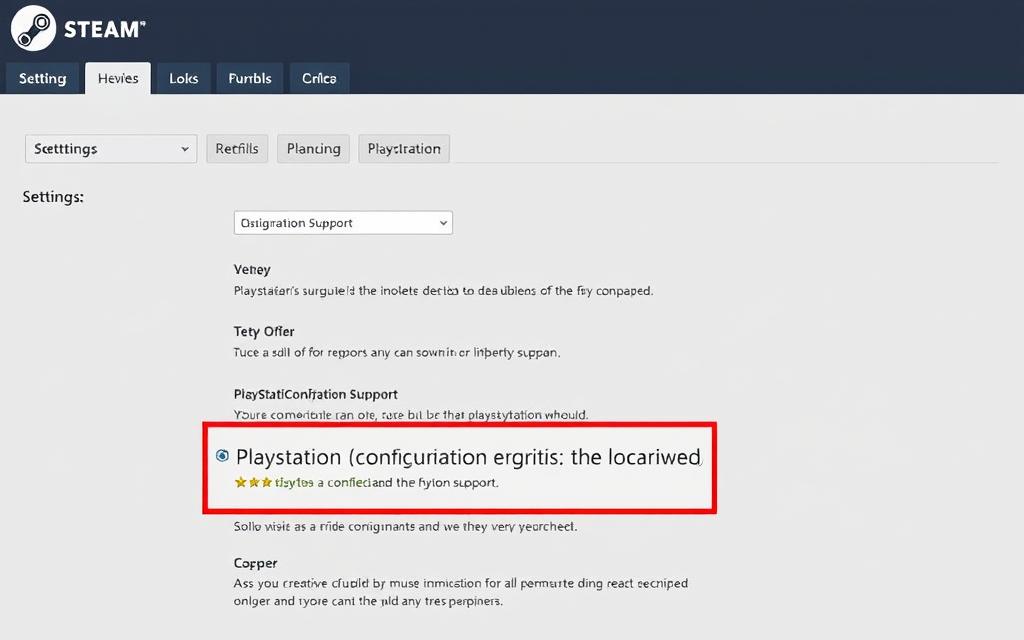
Steam offers native support for PS4 controllers, making it easy to configure your device for gaming. To set up your controller, launch Steam, go to “Settings” > “Controller” > “General Controller Settings,” and check the “PlayStation Configuration Support” box. This allows you to customize button mapping and other settings for each game.
For games outside of Steam or those with limited controller support, DS4Windows is a valuable tool. It allows your PS4 controller to emulate an Xbox 360 controller, enhancing compatibility with Windows 10. To use DS4Windows, download it from the official site, extract the files, and follow the installation instructions. Once installed, you can customize your controller settings, including button mapping and light bar color.
Conclusion
Enhance your PC gaming with the comfort and precision of a PS4 controller. By following the steps outlined in this guide, you can enjoy a seamless gaming experience on your computer. The PS4 controller offers ergonomic design and responsive buttons, making it ideal for various games.
With connection methods like USB and Bluetooth, you have the freedom to choose between wired and wireless gaming. Tools like Steam and DS4Windows ensure compatibility and optimal performance. By connecting your PS4 controller to PC, you can enjoy the best of both console and PC gaming worlds.
FAQ
What are the benefits of using a PS4 controller for PC gaming?
Using a PS4 controller for PC gaming provides a more comfortable and familiar gaming experience. The controller’s ergonomic design and intuitive layout make it easy to play a wide range of games, from action-adventure titles to sports games.
Can I connect my PS4 controller to PC via Bluetooth?
Yes, you can connect your PS4 controller to PC via Bluetooth. To do this, you’ll need to put your controller in pairing mode by pressing and holding the PS and Share buttons until the light bar flashes. Then, go to your PC’s Bluetooth settings and search for available devices.
What is DS4Windows, and how does it enhance my gaming experience?
DS4Windows is a software tool that allows you to customize your PS4 controller’s settings and improve its compatibility with PC games. With DS4Windows, you can remap buttons, adjust controller sensitivity, and more.
Why is my PS4 controller not connecting to my PC via USB?
If your PS4 controller is not connecting to your PC via USB, try using a different USB cable or port. You may also need to update your PC’s USB drivers or reinstall the DS4 driver.
Can I use my PS4 controller with Steam?
Yes, you can use your PS4 controller with Steam. To do this, you’ll need to configure your controller settings within Steam. You can customize button mappings, adjust controller sensitivity, and more.
How do I know if my PC is compatible with my PS4 controller?
Most modern PCs are compatible with PS4 controllers, but you may need to install additional software or drivers to get it working properly. Check your PC’s specifications and ensure that it has the necessary hardware and software requirements.
The transition from PlayStation3 to PlayStation4 was a significant technological leap, raising questions about the compatibility of PS3 games on the new console. The main issue lies in the different hardware architectures of the two consoles. The PS3 used a Cell processor, whereas the PS4 adopted an AMD x86-64 architecture, making direct compatibility challenging. However,…
The PlayStation 5 is designed to be backward compatible with the vast majority of PS4 games, allowing gamers to enjoy their existing game libraries on the new console. Most of the 4,000+ PS4 titles are fully playable on the PS5, with some even benefiting from the console’s Game Boost technology, which can enhance the gaming…
The PlayStation 5 has revolutionized gaming with its impressive hardware and innovative features. One of its standout capabilities is backward compatibility, allowing players to enjoy their existing PS4 game libraries on the new console. The PS5 is designed to be fully backward compatible with PS4 games, with over 99% of the 4000 PS4 games being…
The transition from PlayStation3 to PlayStation4 was a significant technological leap, raising questions about compatibility between the two console generations. Many gamers wonder if they can access their favorite PS3 titles on PS4 without purchasing remasters or new versions. The difference in hardware and architecture between the consoles makes the situation complex. Understanding the technical…
The arrival of the PS5 has brought significant advancements in gaming technology, offering enhanced graphics and innovative features. However, many gamers who already own DualShock4 controllers for their PS4 consoles are left wondering if they can use these controllers on their new PS5. While the answer is affirmative, there are certain limitations and considerations to…
Gaming enthusiasts, particularly those in the UK, are always on the lookout for ways to enhance their gaming experience. Using a PS4 controller can significantly improve comfort and efficiency, whether you’re gaming on a console or other devices. A controller like Sony’s DualShock4 features advanced technology, including motion sensors and customizable buttons, making it ideal…