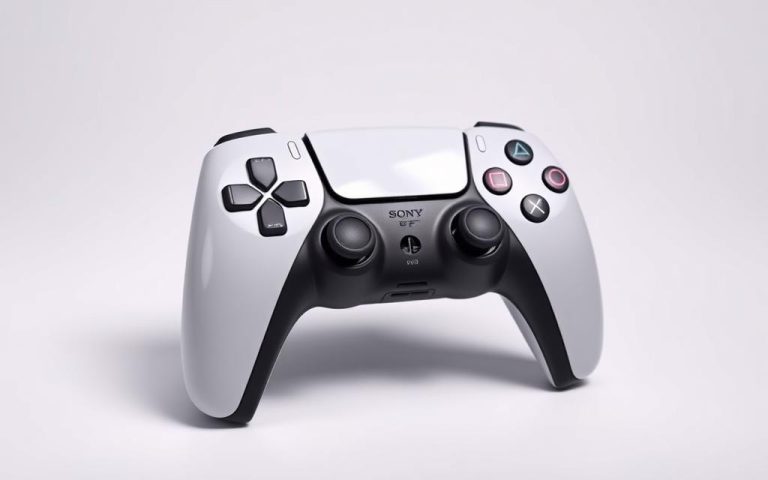
For mobile gaming enthusiasts, using a controller like Sony’s excellent PS4 controller can significantly enhance comfort and efficiency. Although many have moved on to the PS5, there are still plenty of reasons to keep your PS4, or at least the ps4 controller, up and running.
This comprehensive guide will walk you through the necessary steps to connect your PS4 remotes to your PlayStation4 console. The PlayStation4 system allows for multiple controllers to be connected simultaneously, making it perfect for multiplayer gaming sessions.
Whether you’re setting up a brand new controller or reconnecting an existing one, this guide provides all the information you need for a seamless gaming experience on your console.
Understanding Your PS4 Controller
To maximize your PS4 gaming potential, it’s crucial to comprehend the intricacies of the DualShock4 controller, including its battery life and key components. The DualShock4 controller is designed to provide an immersive gaming experience, with various features that impact gameplay.
Components of the DualShock4 Controller
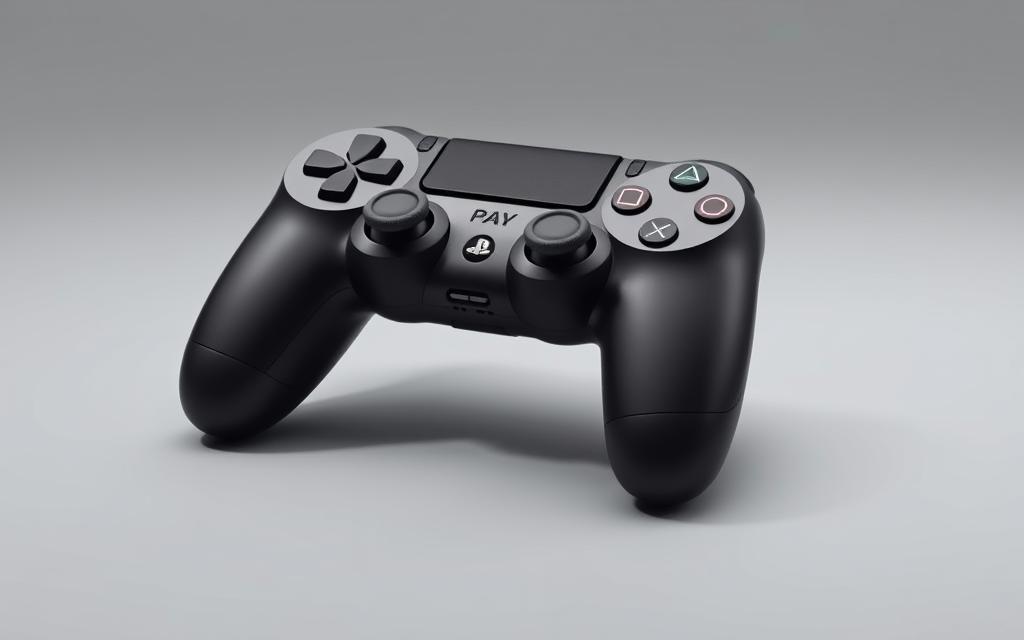
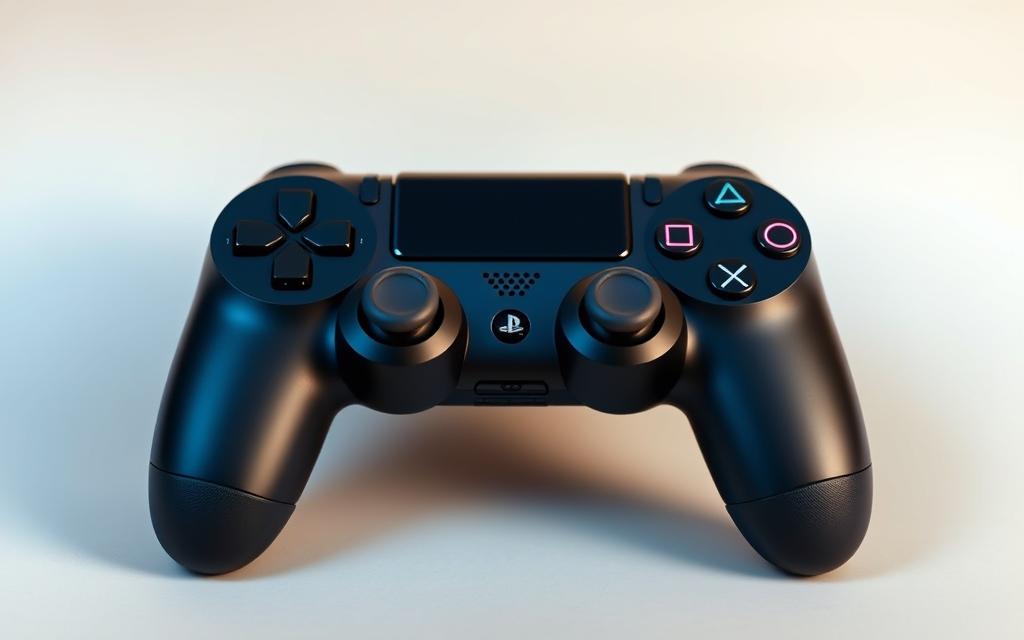
The DualShock4 controller features several key components, including the light bar, which indicates player number and controller status through different colors. Understanding the button layout is also essential for proper operation; the PS button in the center is used for turning on the console and accessing the Quick Menu.
The controller’s battery life typically lasts 4-8 hours of gameplay, depending on usage intensity and whether features like vibration and the light bar are active. To check your controller’s battery level, press and hold the PS button to display the Quick Menu, where the battery icon will be visible. For more information on syncing your PS4 controller, you can visit this guide. Charging the controller requires approximately 2 hours from empty to full, and the light bar will blink yellow during the charging process.
How to Connect PS4 Remotes Using a USB Cable
You can easily connect your PS4 controller to your PS4 console using a simple USB cable. This method is not only straightforward but also the most reliable way to establish a connection, especially when you’re setting up your console for the first time or experiencing issues with wireless connectivity.
Required Equipment
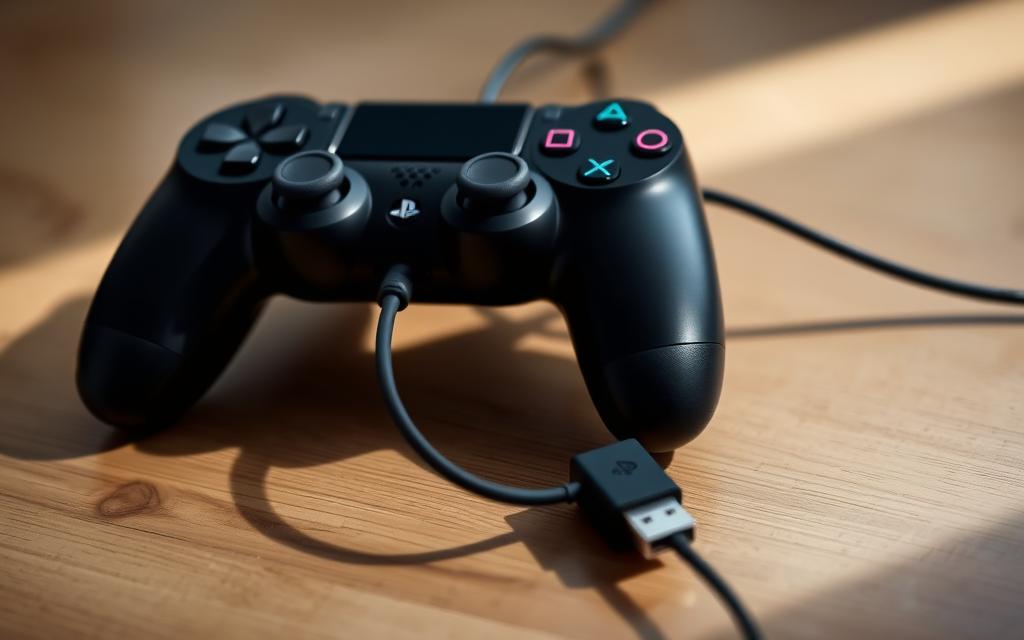
To initiate the connection, you’ll need a USB to Micro-B cable. Fortunately, this cable is typically included with your DualShock4 controller. If you need a replacement, any standard USB2.0 to Micro-B cable will suffice. The USB cable is essential for syncing your controller with your PS4 console.
Step-by-Step Connection Process
Begin by plugging the smaller end of the USB cable into the top of your controller, then connect the larger end to one of the USB ports on your PS4 console. Once connected, press the PS button in the center of the controller to activate it. Your PS4 should automatically recognize the controller, thanks to the wired connection.
Verifying Successful Connection
A successful connection is indicated when the light bar on your controller illuminates. The primary controller is usually represented by a blue light, while additional controllers are indicated by red, green, or pink lights. While connected via USB cable, your controller will also charge, indicated by a yellow light when it’s charging but not in use. Ensure that your controller is working properly by checking these indicators.
Connecting PS4 Controllers Wirelessly via Bluetooth
Connecting your PS4 controller wirelessly via Bluetooth enhances your gaming experience by providing more freedom and reducing clutter. This method allows you to play games without being tethered to your console, making it a more enjoyable experience.
Putting Your Controller in Pairing Mode
To start the wireless connection process, ensure your PS4 controller is turned off. Then, simultaneously press and hold the PS and SHARE buttons until the light bar begins to flash, indicating that the controller is in pairing mode. This step is crucial for establishing a wireless connection.
Completing the Wireless Connection
With your controller in pairing mode, navigate to your PS4’s Settings menu, select Devices, and then Bluetooth Devices. Your PS4 will search for available controllers, and your controller should appear as “Wireless Controller.” Select it to complete the pairing process. Once connected, the light bar on your controller will become steady, indicating a successful connection.
Managing Multiple Controllers
The PS4 supports up to four wireless controllers connected simultaneously. Each controller is assigned a different color for easy identification. You can manage multiple controllers by assigning them to different user profiles through the PS4 settings menu, making it easier to switch between users.
To connect multiple controllers, repeat the pairing process for each controller.
Assign different controllers to different user profiles for a personalized gaming experience.
Once paired, controllers will automatically reconnect to the PS4 when the PS button is pressed.
Troubleshooting Common Connection Issues
Troubleshooting your PS4 controller involves checking several potential problem areas to restore a stable connection. Connection issues can arise from various factors, including hardware malfunctions, software glitches, or simple configuration mistakes.
Controller Not Connecting or Responding
When your PS4 controller isn’t connecting properly, the first step is to check its battery level. A low battery is the most common cause of connection issues. Try charging the controller using a USB cable to rule out any battery-related problems. If the issue persists, try using a different USB cable or charging port to isolate the problem.
Common Issues and Solutions:
Low battery: Charge the controller.
Faulty USB cable: Try a different cable.
Wireless interference: Move other wireless devices away from the PS4.
How to Reset Your PS4 Controller
If your controller is not responding or you’re experiencing persistent connection issues, resetting the controller may resolve the problem. To reset your PS4 controller, turn off your PS4, then locate the small reset button on the back of the controller near the L2 button. Use a paperclip to press the button inside the hole for at least 5-10 seconds. After resetting, reconnect the controller to your PS4 using a USB cable.
Step
Description
1
Turn off your PS4.
2
Locate the reset button on the back of the controller.
3
Press the reset button using a paperclip for 5-10 seconds.
4
Reconnect the controller to your PS4 using a USB cable.
Switching Between Wired and Wireless Modes
Some connection issues can be resolved by switching between wired and wireless modes. You can configure this setting in the Devices settings menu under Controllers. Setting your controller to communicate only via USB when plugged in can help bypass Bluetooth connectivity problems.
For persistent issues, consider checking for firmware updates for your DualShock controller through your PS4 system settings. If multiple controllers are experiencing similar issues, the problem might lie with your console rather than the controllers. In such cases, rebuilding the PS4 database through Safe Mode can be a potential solution.
Conclusion
As we’ve seen, linking your PS4 controller to your console can be achieved in a few easy steps, either wirelessly or with a USB cable. The PS4 controller can be connected using a direct USB cable connection for a stable and charged experience, especially during initial setup. The light bar on your controller is a crucial indicator, showing player number, battery status, and connection status.
When troubleshooting, start with the basics: check the controller’s battery level, ensure the USB cable is functioning, and reset the controller if needed. The PS4 console supports up to four controllers, making multiplayer gaming easy. For wireless connections, press and hold the PS and Share buttons until the light bar flashes. Regularly charging and handling your controller with care will extend its lifespan. With this guide, you should be able to connect your PS4 controller with confidence and troubleshoot any issues.
FAQ
What is the first step to connect my DualShock 4 controller to my PS4 console?
To start, ensure your PS4 is turned on, then use a USB cable to connect your controller to the console. This initial connection is necessary for pairing.
How do I put my PS4 controller in pairing mode?
Press and hold the PS button and the Share button simultaneously until the light bar starts blinking. This indicates the controller is in pairing mode.
Can I connect multiple PS4 controllers to my console?
Yes, you can connect up to four controllers wirelessly. To do this, put each controller in pairing mode and select the controller you want to pair from the PS4’s Bluetooth devices list.
Why is my PS4 controller not responding or connecting?
If your controller is not connecting, try resetting it by pressing the small reset button on the back near the L2 trigger. Then, attempt to pair it again.
How do I switch between wired and wireless modes on my PS4 controller?
To switch from wired to wireless, simply unplug the USB cable after the controller is paired. To switch back to wired, plug the USB cable back into the controller and the PS4.
What should I do if my PS4 controller’s battery is draining quickly?
If your controller’s battery life is shorter than expected, try turning off the controller when not in use or reducing the brightness of the light bar to conserve battery life.
Can I use my PS4 controller with other devices via Bluetooth?
Yes, your PS4 controller can be paired with other Bluetooth devices, but it may require putting the controller in pairing mode and following the device’s specific pairing instructions.
The PlayStation 5 has revolutionized gaming with its impressive hardware and innovative features. One of its standout capabilities is backward compatibility, allowing players to enjoy their existing PS4 game libraries on the new console. The PS5 is designed to be fully backward compatible with PS4 games, with over 99% of the 4000 PS4 games being…
Gaming on a PC can be more enjoyable with a PS4 controller, offering a more immersive and comfortable gaming experience. While the keyboard-mouse combo is reliable, many players prefer the familiarity of a controller. This guide will walk you through the simple process of connecting your PS4 controller to your PC, covering both wireless Bluetooth…
Phasmophobia has taken the gaming world by storm with its unique horror theme, captivating millions of players worldwide. This horror game challenges players to investigate paranormal activities in abandoned locations, making it a thrilling experience. Initially launched in early access on PC in September 2020, Phasmophobia quickly gained popularity through Twitch streams and word-of-mouth, reaching…
The arrival of the PlayStation 5 marked a significant milestone in the gaming world, offering enhanced graphics capabilities and innovative features. Many gamers who already own DualShock 4 controllers for their PS4 consoles wonder if they can use them on their new PS5. The answer is yes, but with some limitations. For those looking to…
The transition from PlayStation3 to PlayStation4 marked a significant technological leap, leaving many gamers wondering about the compatibility of their existing game libraries. The question on every gamer’s mind was: is it possible to play PS3 games on PS4? The answer lies in understanding the technical limitations and available alternatives. This comprehensive guide will explore…
The latest console from Sony, the PS5, has brought numerous enhancements and new features to the gaming world. However, for those upgrading from the PS4, a common question arises: can they continue using their existing PS4 controllers? The compatibility between PS4 controllers and the PS5 is limited. While the PS5 supports some functions with the…