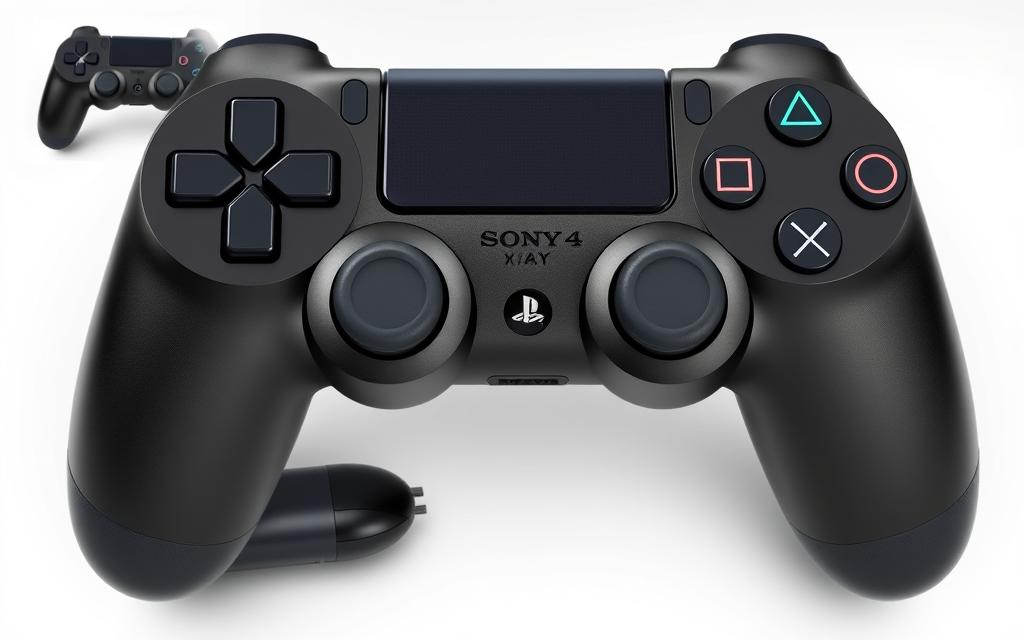
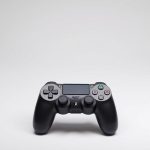
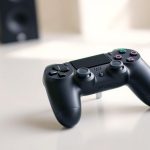
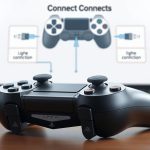
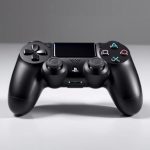
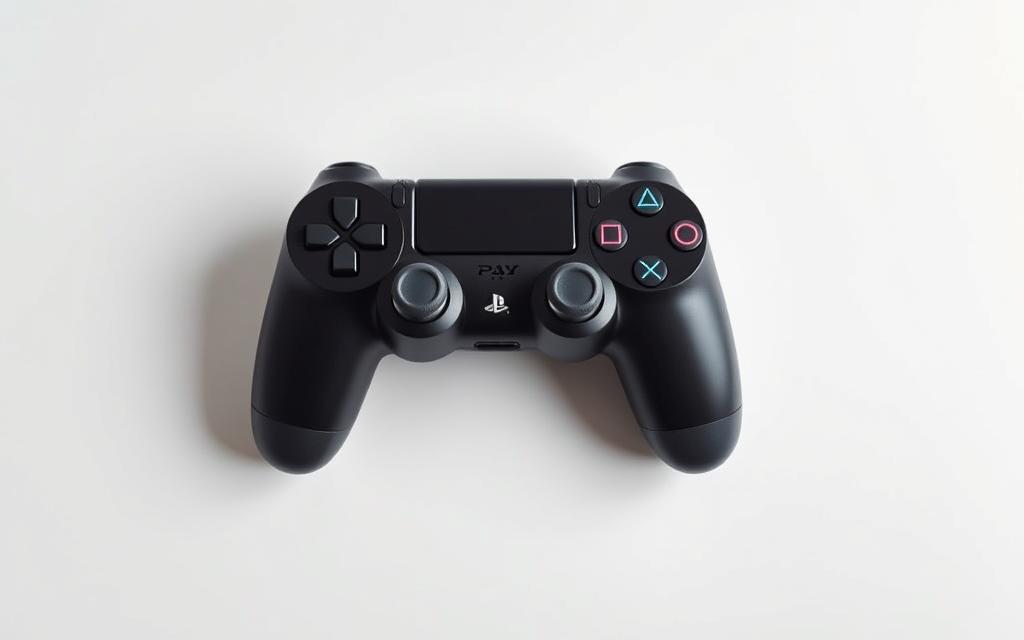
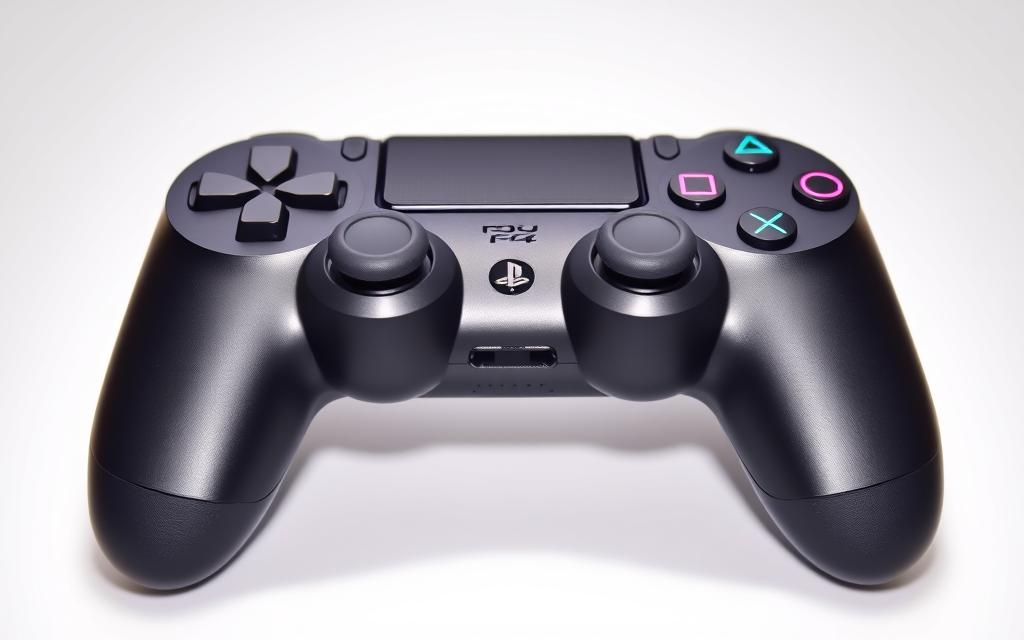
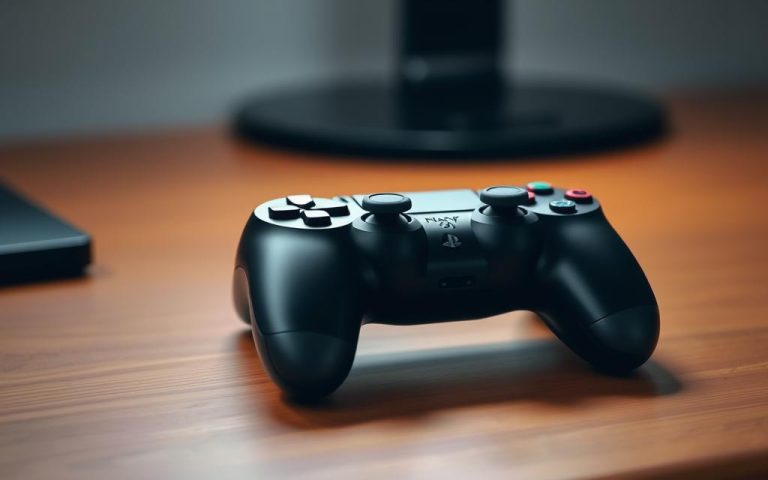
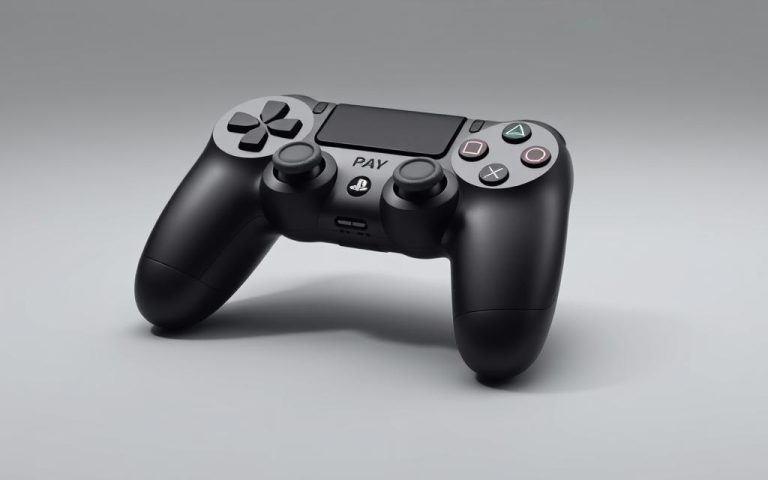
For mobile gaming enthusiasts, using a controller like Sony’s DualShock4 can significantly enhance the gaming experience. The comfort and efficiency it provides are unmatched by traditional touchscreen controls.
Understanding the benefits of using a PS4 controller with your phone is essential. This comprehensive guide will walk you through the process, covering multiple connection methods, including Bluetooth pairing and USB connections, for both Android and iOS devices.
By the end of this guide, you’ll be able to enjoy console-quality control for your mobile games, elevating your gaming experience to new heights.
Benefits of Using a PS4 Controller for Mobile Gaming
The PS4 controller transforms mobile gaming with its advanced features and ergonomic design, providing a more authentic experience on your mobile device.
Enhanced Gaming Experience
Using a PS4 controller for mobile gaming elevates the overall experience by providing precise analog stick control that touchscreens cannot match. Action games, racing titles, and platformers benefit from the tactile feedback and precision of physical buttons and triggers. The PS4 controller‘s built-in features like vibration feedback enhance immersion in supported mobile games.
The DualShock4’s ergonomic design prevents hand fatigue during extended gaming sessions, unlike touchscreen controls that can cause discomfort. The controller‘s familiar layout allows PlayStation users to transition seamlessly between console and mobile gaming without a learning curve. Many competitive mobile gaming prefer controllers for their consistent input and ability to execute complex maneuvers more reliably.
Benefits
Description
Precise Control
Analog sticks provide precise control, enhancing the gaming experience.
Ergonomic Design
The DualShock4’s design prevents hand fatigue during extended gaming sessions.
Tactile Feedback
Physical buttons and triggers offer tactile feedback, improving gameplay.
Compatibility Requirements
Ensuring your device is compatible with the PS4 controller is crucial for a seamless gaming experience. To use a PS4 controller with your mobile device, specific system requirements must be met.
Android Device Requirements
For Android devices, the PS4 controller is compatible with smartphones or tablets running Android 10 or later. To check your device’s operating system version, navigate to Settings, then “About phone.” Some Android manufacturers, like Sony Xperia, offer better native support for PlayStation controllers, ensuring a more integrated experience.
iOS Device Requirements
iOS users need a PlayStation DualShock4 wireless controller and an iPhone or iPad running iOS 13 or later. Bluetooth 4.0 or higher is required on your mobile device to maintain a stable connection with the controller. It’s also important to ensure that both your controller’s firmware and your device’s operating system are updated to the latest versions for optimal performance.
How to Connect PS4 Controller to Phone via Bluetooth
You can easily connect your PS4 controller to your phone via Bluetooth, opening up new gaming possibilities. This connection allows for a more immersive gaming experience on your mobile device.
Preparing Your Controller for Pairing
To start, ensure your PS4 controller is turned off. Then, simultaneously press and hold the PS and SHARE buttons until the light bar begins to flash, indicating that the controller is in pairing mode. This step is crucial as it makes your controller discoverable by your phone.
Accessing Bluetooth Settings on Your Phone
On your Android smartphone or tablet, navigate to the Bluetooth settings menu. Ensure that Bluetooth is enabled and your device is set to discover nearby devices. This will allow your phone to detect the PS4 controller.
Completing the Pairing Process
Once your phone detects the controller, it will appear in the list of available devices as “DUALSHOCK4 Wireless Controller” or “Wireless Controller.” Tap on this device to initiate the pairing process. Typically, no PIN code is required. After successful pairing, the controller’s light bar will change from flashing to a steady light, indicating an active connection.
Step
Description
1
Turn off the PS4 controller.
2
Press and hold the PS and SHARE buttons to enter pairing mode.
3
Enable Bluetooth on your phone and select the controller from the list.
Connecting PS4 Controller via USB Cable
A wired connection between your PS4 controller and phone can provide a more reliable gaming experience. This method is particularly beneficial for competitive gaming, as it eliminates potential Bluetooth interference issues.
Required Cables and Adapters
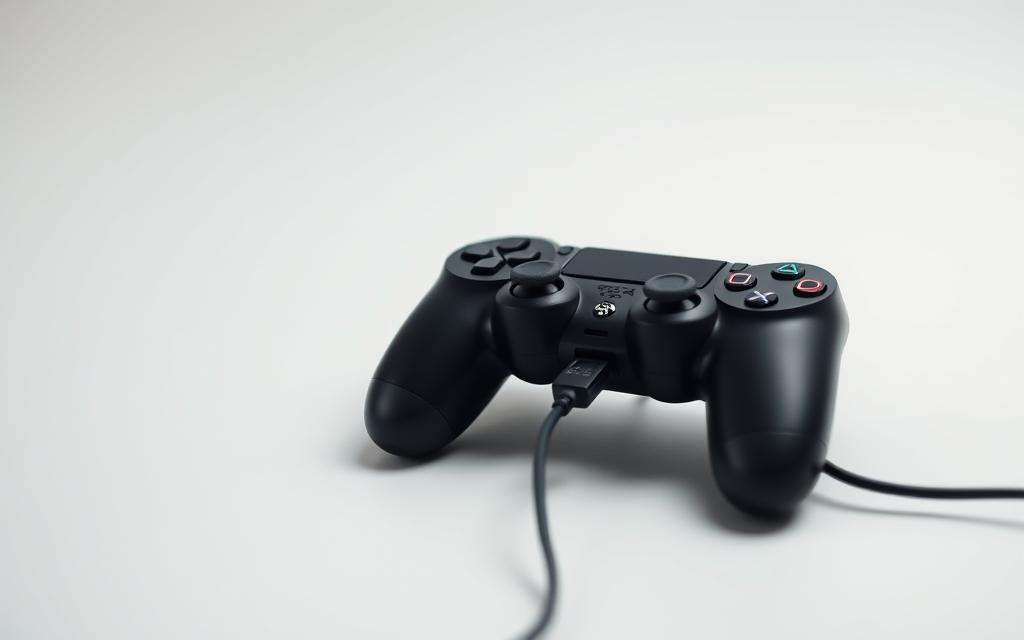
To establish a USB connection, you’ll need to ensure you have the correct cables and adapters. The standard micro-USB cable that comes with your DualShock4 controller may not be compatible with modern smartphones that typically have USB-C ports.
For Android devices with USB-C ports, you’ll need either a USB-C to micro-USB cable or a USB OTG (On-The-Go) adapter to connect your controller.
iPhone users will require a Lightning to USB adapter (often referred to as a Camera Adapter) to establish a wired connection.
Connection Process
Once you have the necessary cables or adapters, the connection process is straightforward.
Simply plug the DualShock4 controller into your device using the appropriate cable or adapter.
Most devices will automatically recognize the controller without requiring additional setup steps.
This wired connection not only provides stability but also reduces input lag, making it preferable for competitive gaming. However, it’s worth noting that wired connections can drain your phone’s battery more quickly than wireless connections.
With the PS Remote Play app, you can enjoy your PlayStation games on your mobile device, no matter the location. This app allows you to stream games directly from your PlayStation console to your mobile device over a network connection.
Setting Up Remote Play
To start using Remote Play, you’ll first need to enable the feature in your PS4 or PS5 console settings under “Remote Play Connection Settings.” Both your console and mobile device need to be connected to a stable internet connection, with a high-speed connection recommended for optimal performance. For more detailed instructions, you can visit CNET’s guide on Remote Play.
Playing PlayStation Games on Your Phone
After installing the PS Remote Play app from your device’s app store, you’ll need to sign in with the same PlayStation Network account used on your console. The app will then guide you through connecting your DualShock controller to your phone, a process similar to standard Bluetooth pairing. This allows you to access your entire PlayStation game library, making it particularly useful when traveling or when the main TV connected to your console is being used by someone else.
Mobile Games Compatible with PS4 Controller
The PS4 controller is not just for console gaming; it’s also compatible with a wide range of Android games. Once connected via Bluetooth, you can enjoy a more immersive gaming experience on your mobile device.
Discovering Games that Support Controllers
To find games that are compatible with the PS4 controller, look for “controller support” in the game’s description on the Google Play Store. Many popular titles, including action games and shooters, now support external controllers.
Check the game’s description for controller support.
Some games automatically detect connected controllers.
Popular Titles that Work Well with PS4 Controllers
Some of the most popular games that work well with PS4 controllers include Call of Duty Mobile, Asphalt 9, and Minecraft. These games offer enhanced gaming experiences with improved control and precision.
Game Title
Genre
Controller Support
Call of Duty Mobile
Shooter
Yes
Asphalt 9
Racing
Yes
Minecraft
Adventure
Yes
Troubleshooting Common Connection Issues
When connecting your PS4 controller to your phone, several issues might arise that can hinder your gaming experience. Ensuring a stable connection is crucial for optimal gaming performance.
Controller Won’t Connect
If your controller won’t connect, first ensure both your phone and controller have sufficient battery power, as low battery can prevent successful pairing. Try resetting the controller by inserting a small pin into the reset button located on the back near the L2 shoulder button.
Check that your smartphone or tablet is up to date, as well as your controller.
Reset the Bluetooth connection by “forgetting” the device in the settings, then reconnecting it.
Controller Disconnects Frequently
If your controller disconnects frequently, check that you’re within the optimal Bluetooth range (usually about 30 feet or 10 meters) from your phone. Interference from other Bluetooth devices can cause connection problems.
Try pairing in an area with fewer wireless devices active.
For Android users, clearing the Bluetooth cache in your phone’s app settings can resolve persistent connection problems.
Input Lag or Unresponsive Buttons
Input lag issues are often caused by Bluetooth interference or too many background apps running on your phone. Try closing unused applications to improve performance. Make sure your controller’s firmware is up to date by connecting it to a PS4 console and checking for system updates.
If buttons are unresponsive, try testing the controller on another device to determine if the issue is with the controller itself or the connection.
After enjoying mobile gaming with your PS4 controller, it’s time to reconnect it to your PlayStation console. To do this, you’ll need to disable the Bluetooth connection on your phone.
Disabling Phone Bluetooth Connection
First, disable Bluetooth on your smartphone to release the controller from the phone’s connection. This step is crucial for reconnecting the controller to your PS4 console.
Syncing Back to PlayStation Console
Next, you can reconnect your DualShock controller to your PS4 either by using a micro-USB cable or by putting the controller in pairing mode and selecting it from the PS4’s Bluetooth devices list. Press the PS button to complete the pairing process.
Conclusion
As you’ve learned, pairing your PS4 controller with your phone enhances your gaming experience. This connection allows you to enjoy console-quality controls on the go. Whether you choose Bluetooth or USB, both methods offer significant improvements over touchscreen controls for most games. The versatility of the DualShock4 controller makes it an excellent investment for gamers across multiple platforms. With your PS4 controller connected, you can play your favorite mobile games with precision and comfort. Remember to keep your controller firmware and phone OS updated for continued compatibility. By doing so, you’ll be able to switch your controller between your phone and console with ease, giving you gaming flexibility wherever you go.
FAQ
Is it possible to use a DualShock wireless controller with my Android device?
Yes, you can use a DualShock wireless controller with your Android device via Bluetooth. Make sure your device supports Bluetooth connectivity and is compatible with the controller.
What are the system requirements for using a PS4 controller with my phone?
Your phone should be running on Android 10 or later, or iOS 13 or later, and have Bluetooth 4.0 or higher for a stable connection.
How do I put my PS4 controller in pairing mode?
To put your PS4 controller in pairing mode, press and hold the PS button and the Share button simultaneously until the light bar starts flashing.
Can I use a USB cable to connect my PS4 controller to my phone?
Yes, you can use a USB cable to connect your PS4 controller to your phone, but you’ll need a compatible adapter, such as a USB-C or micro-USB adapter, depending on your phone’s port.
Why is my PS4 controller not connecting to my phone?
If your PS4 controller is not connecting to your phone, try restarting both devices, checking your Bluetooth settings, and ensuring that your controller is in pairing mode.
Can I play PlayStation games on my phone using the PS Remote Play app?
Yes, you can play PlayStation games on your phone using the PS Remote Play app, which allows you to stream games from your PS4 console to your mobile device.
Are all mobile games compatible with the PS4 controller?
No, not all mobile games are compatible with the PS4 controller. Check the game’s description or documentation to see if it supports controller input.
How do I disconnect my PS4 controller from my phone and reconnect it to my PS4 console?
To disconnect your PS4 controller from your phone, disable Bluetooth on your phone or restart the controller. To reconnect it to your PS4 console, simply turn on the console and press the PS button on the controller.
Learn More Sony’s highly anticipated PlayStation4 was launched in multiple phases starting in November 2013. The PlayStation4 (PS4), developed by Sony Interactive Entertainment, was announced as the successor to the PlayStation3 in February 2013. The PS4 represents one of Sony’s most successful console launches, with a carefully planned global rollout strategy. Understanding the PS4’s release…
Factory resetting a PlayStation 4 is a straightforward process that restores the console to its original state, erasing all data in the process. This comprehensive guide will walk you through the steps to factory reset your PS4, whether you’re troubleshooting issues, preparing it for sale, or starting fresh after purchasing a used system. You can…
Gaming on a PC can be more enjoyable with a PS4 controller, offering a more immersive and comfortable gaming experience. While the keyboard-mouse combo is reliable, many players prefer the familiarity of a controller. This guide will walk you through the simple process of connecting your PS4 controller to your PC, covering both wireless Bluetooth…
The release of Grand Theft Auto 5 in 2013 was a monumental event in the gaming world, with the game receiving widespread critical acclaim and commercial success. As gamers considered upgrading to the newer console, a natural question arose: what are the key differences between the PS3 and PS4 versions? Rockstar released comparison videos showcasing…
Pairing your PS4 controller with your console is key for a great gaming time. Knowing how to connect the DualShock 4 is vital. It helps you play smoothly, without breaks. This is true whether it’s your first time or if you’re reconnecting. This guide will walk you through how to properly pair your controller. We’ll…
For mobile gaming enthusiasts, using a controller like Sony’s excellent PS4 controller can significantly enhance comfort and efficiency. Although many have moved on to the PS5, there are still plenty of reasons to keep your PS4, or at least the ps4 controller, up and running. This comprehensive guide will walk you through the necessary steps…