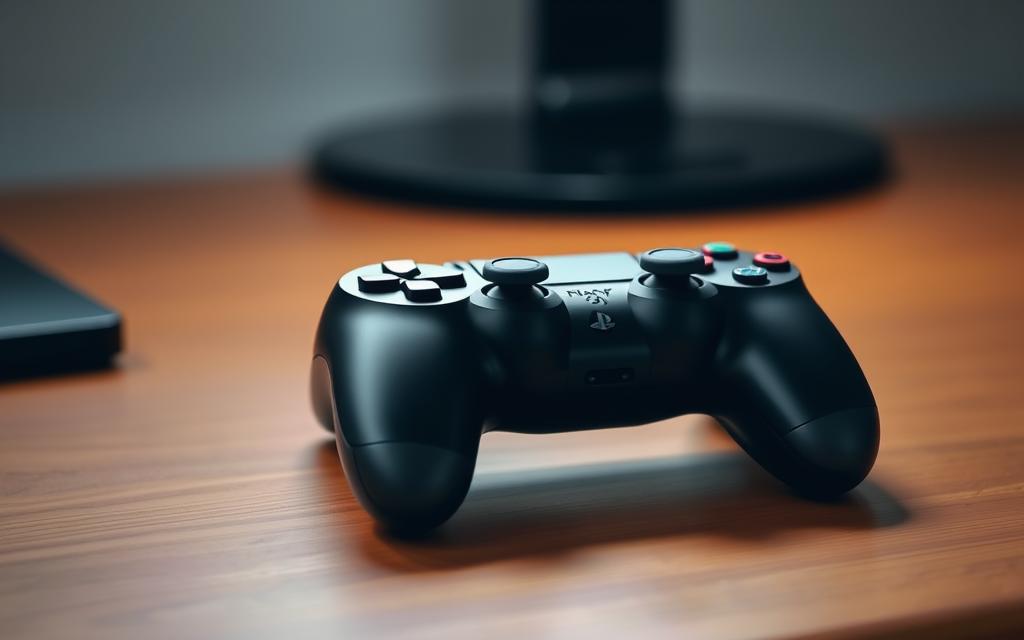
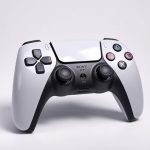
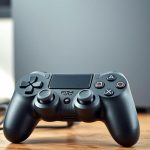
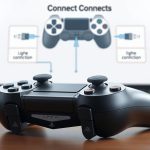
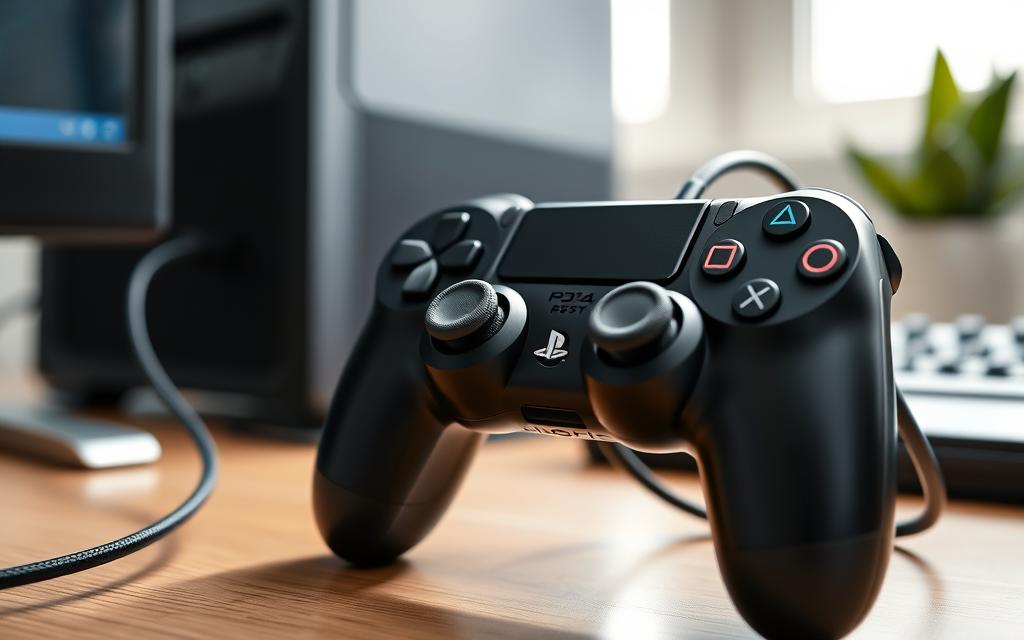
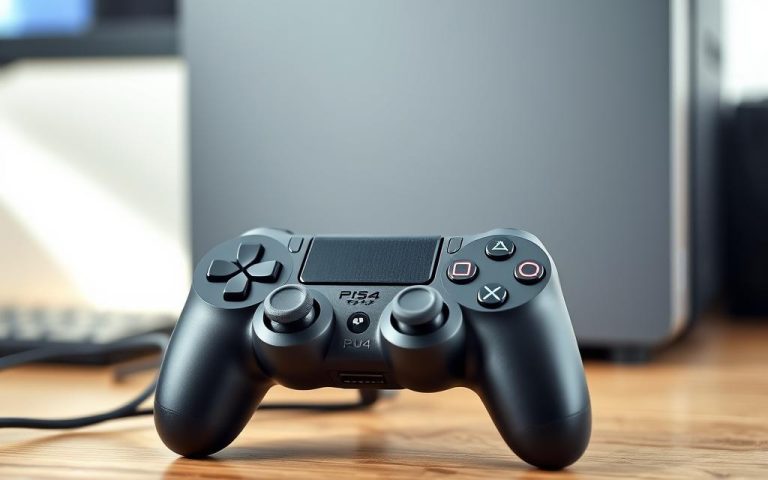
Gaming on a PC can be more enjoyable with a PS4 controller, offering a more immersive and comfortable gaming experience. While the keyboard-mouse combo is reliable, many players prefer the familiarity of a controller.
This guide will walk you through the simple process of connecting your PS4 controller to your PC, covering both wireless Bluetooth and wired USB connection methods. You’ll learn about compatibility with different PC systems, including Windows 10 and 11, and troubleshooting common issues to ensure a seamless gaming experience.
By the end of this tutorial, you’ll be able to enjoy your favorite PC games with the comfort of your controller.
Understanding PS4 Controller Compatibility with PC
Knowing the compatibility and requirements for connecting your PS4 controller to your PC is the foundation of a successful connection. The PS4 controller, also known as the DualShock 4, is designed to work seamlessly with the PlayStation 4 console, but it can also be used with a computer. To use your PS4 controller with a PC, you need to understand the devices involved and their compatibility.
Benefits of Using a PS4 Controller for PC Gaming
Using a PS4 controller for PC gaming offers several benefits. The controller is ergonomic and comfortable to hold, making long gaming sessions more enjoyable. Additionally, many PC games are optimized to work with the DualShock 4, providing a native gaming experience. The controller’s wireless capability also adds to the convenience, allowing gamers to play from a distance.
To connect your PS4 controller to your PC, you’ll need a few essential items. Here’s a summary of the requirements:
Item
Description
DualShock 4 Controller
A PS4 controller in good working condition with sufficient battery charge for wireless use.
Micro-USB Cable
A micro-USB cable, preferably the original one that came with your PS4 controller, for wired connections or initial setup.
Windows PC
A PC with Windows 10 or 11 operating system and available USB ports.
Bluetooth Capability
Bluetooth capability on your PC for wireless connections, or a compatible Bluetooth adapter if your computer doesn’t have built-in Bluetooth.
Having these items ready will ensure a smooth connection process. It’s also important to be patient and willing to troubleshoot if initial connection attempts don’t succeed immediately.
How to Connect a PS4 Controller to PC via USB
Connecting your PS4 controller to your PC via USB is a straightforward process that enhances your gaming experience. This method provides a stable and reliable connection, ideal for gaming sessions where wireless connectivity might be a concern.
Step-by-Step Wired Connection Process
To connect your PS4 controller to your PC, start by locating a suitable USB cable. Plug one end into your controller and the other into a free USB port on your computer. Windows should recognize the device, and you may need to install a driver for the controller to function properly. For some games, additional software like DS4Windows might be required to ensure full compatibility and functionality.
Troubleshooting Common USB Connection Issues
If your PC doesn’t recognize the controller, try using a different USB cable or port on your computer. Some cables are charge-only and don’t support data transfer. You can also check the Windows Device Manager to see if the controller is listed under “Human Interface Devices.” If issues persist, consider resetting your controller or installing the necessary driver software. For more detailed instructions, you can refer to guides on how to pair a PS4 controller to.
Connecting Your PS4 Controller Wirelessly via Bluetooth
Bluetooth technology allows for a seamless connection between your PS4 controller and PC, enhancing your gaming experience by eliminating the need for cables.
Pairing Your Controller with Windows 10/11
To pair your PS4 controller with a Windows 10 or 11 PC, first ensure your controller is in pairing mode by pressing and holding the PS button and the Share button simultaneously until the light bar starts flashing. Then, on your PC, go to Bluetooth settings and search for available devices. Select “Wireless Controller” to complete the pairing process. If you encounter issues, try updating your PC’s Bluetooth driver through Device Manager.
Using a Bluetooth Adapter for PCs Without Built-in Bluetooth
If your PC lacks built-in Bluetooth, you can use a Bluetooth adapter to achieve wireless connectivity. Simply plug the adapter into a USB port, install any necessary drivers, and follow the pairing process described above.
Fixing Bluetooth Connection Problems
For persistent connection issues, consider the following steps: Remove the controller from your Bluetooth devices list and repair it from scratch, update your Bluetooth drivers, and minimize Bluetooth interference by moving closer to your PC or removing potential sources of interference. If problems persist, the controller’s Bluetooth component might be weak or failing.
Issue
Solution
Controller won’t pair
Remove and repair the controller, update Bluetooth drivers
Frequent disconnections
Minimize Bluetooth interference, update drivers
Persistent connection issues
Consider using a wired connection or a dedicated wireless USB adapter
Enhancing Your PS4 Controller Experience on PC
Elevate your gaming experience by optimizing your PS4 controller settings on PC. To achieve this, you can start by utilizing Steam’s native support for PS4 controllers, which allows for customized button mapping and game-specific settings.
Steam’s Native Support: After pairing your PS4 controller with your PC, launch Steam and navigate to “Settings” > “Controller” > “General Controller Settings.” Check the “PlayStation Configuration Support” box to enable native support. This allows you to use your PS4 controller to play compatible games on Steam and customize settings for each game.
For advanced customization, consider using the DS4Windows software, which provides options to adjust light bar colors, remap buttons, and create macros. Keeping your controller’s firmware updated through Sony’s official PlayStation Accessories app for Windows is also crucial for optimal compatibility and performance.
Some key tips to enhance your experience include:
Configuring games that don’t natively support PS4 controllers to recognize them as Xbox controllers using compatibility software.
Investing in a controller stand or charging dock to keep your PS4 controller charged.
Exploring community-created controller profiles for popular games to find optimized settings.
Adjusting deadzone settings and sensitivity for competitive gaming.
Troubleshooting input lag by adjusting polling rate settings or switching to a wired connection.
By implementing these strategies, you can significantly enhance your PS4 controller experience on PC and enjoy a more personalized gaming experience.
FAQ
Is my PS4 controller compatible with my Windows PC?
Most PS4 controllers are compatible with Windows PCs, but it’s essential to check the controller’s version and ensure it’s a genuine Sony product or a reputable third-party controller.
Do I need to install software to use my PS4 controller on PC?
While Windows 10 and 11 have built-in support for PS4 controllers, you may need to install additional software, such as DS4Windows, to enhance functionality and customize button mapping.
Can I use my PS4 controller wirelessly on PC?
Yes, you can use your PS4 controller wirelessly on PC via Bluetooth. Ensure your PC has Bluetooth capabilities or use a Bluetooth adapter to establish a connection.
Why is my PS4 controller not recognized by my PC via USB?
Common issues include a faulty USB cable, incorrect driver installation, or a malfunctioning USB port. Try using a different USB cable or port, and reinstall the drivers if necessary.
How do I configure my PS4 controller settings on PC?
You can configure your PS4 controller settings through the Windows Settings app, or by using third-party software like DS4Windows, which allows for customization of button mapping, sensitivity, and more.
Can I play games on PC using my PS4 controller without any lag?
Yes, with a wired or wireless connection, you can enjoy a lag-free gaming experience. However, wireless connections may be affected by interference or distance from the PC.
Will my PS4 controller’s light bar work on PC?
Yes, the light bar on your PS4 controller will function on PC, indicating player assignment, battery level, or other game-related information.
Can I charge my PS4 controller while using it on PC?
Yes, you can charge your PS4 controller while using it on PC via USB. The controller will continue to function while charging.
The PlayStation 5 has revolutionized gaming with its impressive hardware and innovative features. One of its standout capabilities is backward compatibility, allowing players to enjoy their existing PS4 game libraries on the new console. The PS5 is designed to be fully backward compatible with PS4 games, with over 99% of the 4000 PS4 games being…
The transition from PlayStation3 to PlayStation4 was a significant technological leap, raising questions about backward compatibility. Many gamers wondered if they could play their favorite PS3 games on the new console. Unlike the seamless backward compatibility between PS4 and PS5, the situation with PS3 games on PS4 is more complex due to differences in hardware…
Factory resetting a PlayStation 4 is a straightforward process that restores the console to its original state, erasing all data in the process. This comprehensive guide will walk you through the steps to factory reset your PS4, whether you’re troubleshooting issues, preparing it for sale, or starting fresh after purchasing a used system. You can…
Transform your computer gaming experience by connecting your DualShock™4 controller to your PC. This simple step can elevate your gaming sessions, providing the comfort and familiarity of console gaming on your computer. Connecting your PS4 controller to your PC can be achieved through various methods, including wired and wireless connections. For a seamless gaming experience,…
The gaming community is abuzz with the release of Marvel Rivals, a hero-shooter game developed by NetEase Games. As excitement builds, a pressing question remains: is Marvel Rivals available on PS4 consoles? This comprehensive guide will explore the official status of Marvel Rivals across different gaming platforms, with a particular focus on PS4 compatibility. We…
Gaming enthusiasts often face challenges when trying to connect their PS4 controller to various devices. This step-by-step guide aims to simplify the process, ensuring a seamless gaming experience across different platforms. Whether you’re looking to connect your controller to a PlayStation console, Android smartphone, or iOS device, this article will walk you through both wired…