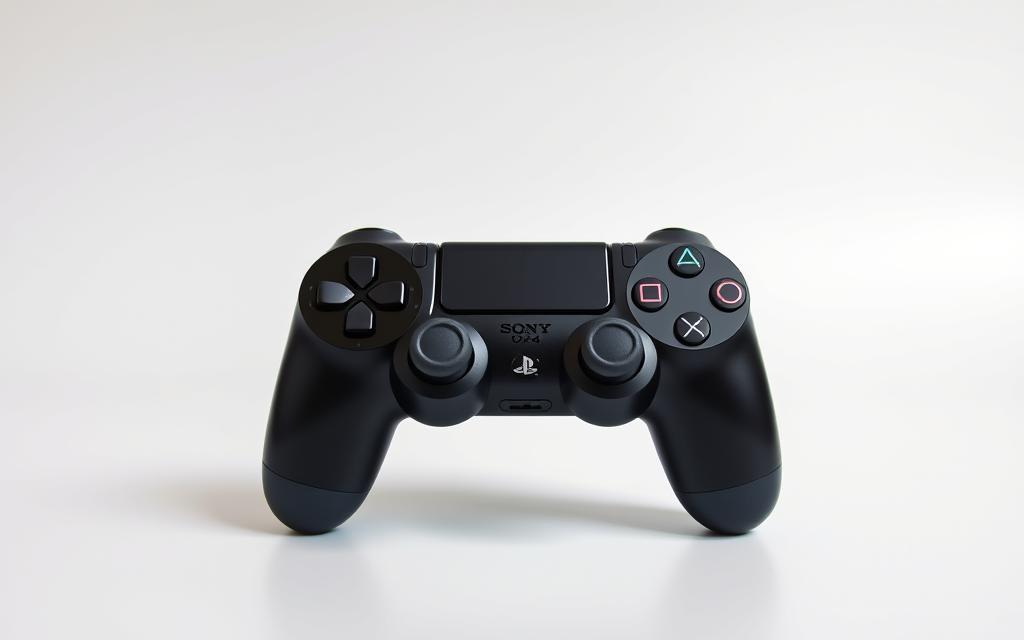
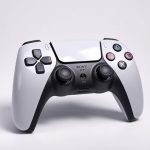
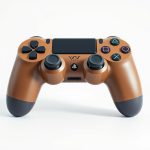
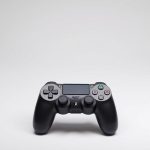
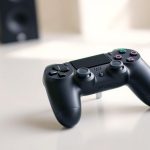
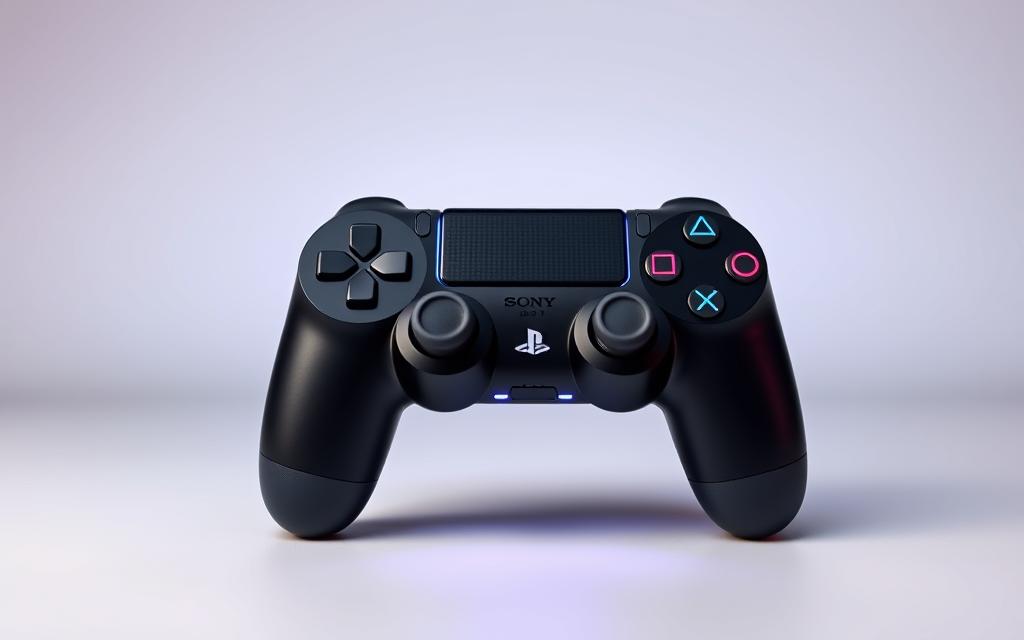
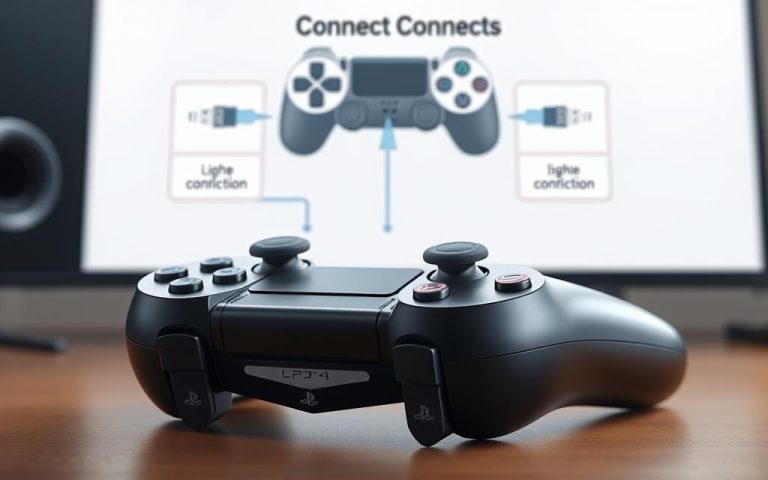
The PS4 controller, also known as the DualShock4, is a versatile device compatible with various platforms beyond the PlayStation4, including PCs and smartphones. Establishing a connection between your controller and PS4 console is a straightforward process.
Understanding the different connection methods available for your DualShock4 controller is crucial for maintaining seamless gameplay. This guide will walk you through the process, covering basic connection methods and troubleshooting common issues that may arise.
The controller’s light bar colors indicate the connection status and player assignment, providing valuable feedback during the pairing process. Whether you’re setting up a new controller or reconnecting an existing one, this article will provide the necessary information to establish a stable connection.
What You’ll Need
Before you can start gaming with your PS4, you’ll need to gather the necessary equipment. The primary requirement is a functional USB to Micro-B cable, essential for the initial pairing process of your PS4 controller.
Required Equipment
To connect your PS4 controller to your console, ensure you have a USB to Micro-B cable. Any USB 2.0 to Micro-B cable will work, not just the one provided with your DualShock4 controller. Additionally, your PlayStation 4 console must be powered on and functioning correctly.
Equipment
Description
USB to Micro-B Cable
For initial pairing and charging
PS4 Console
Must be powered on and functioning
PS4 Controller
Ensure it’s sufficiently charged
Checking Controller Battery Level
Before attempting to connect your controller, check its battery level. The controller’s light bar serves as a battery indicator: it displays yellow when charging but not in use, and shows the assigned player color when fully charged and turned on. Ensuring your controller is sufficiently charged is crucial for a smooth gaming experience.
Establishing a connection between your PS4 controller and the PS4 is a simple process that enhances your gaming experience. To begin, ensure your PS4 console is turned on and fully booted up.
Connecting a New Controller
The process involves a few straightforward steps. First, you need to establish a physical connection between the controller and the console.
Step1: Turn On Your PS4
Start by turning on your PS4 console. Ensure it is fully booted up before proceeding.
Step2: Connect the USB Cable
Next, connect your DualShock 4 controller to the PS4 using a micro-USB cable. This step is necessary for the initial pairing.
Step3: Press the PS Button
After connecting the USB cable, press the PlayStation button (PS button) in the center of the controller to activate it and initiate the pairing process.
Step4: Complete the Connection
Once the controller is paired, the light bar on the controller will light up, indicating a successful connection. You can then unplug the USB cable and use the controller wirelessly.
Understanding the Light Bar Colors
The light bar on your controller serves as a visual indicator of connection status and player assignment. For example, a blue light indicates player one, while red, green, and pink lights signify subsequent players.
Understanding the different light bar colors is crucial for troubleshooting and confirming proper connection. Solid colors indicate successful pairing, while blinking patterns may suggest connection issues or low battery.
Troubleshooting Connection Issues
If your PS4 controller won’t connect, there are several troubleshooting steps you can take to resolve the issue. First, it’s essential to identify the source of the problem.
Common Connection Problems
Common issues include a faulty USB cable or a depleted controller battery. Ensure your cable is functioning properly by testing it with another device.
Checking Your USB Cable
Verify that your USB cable is working correctly. Try using it with another device, such as a smartphone, to rule out any issues.
Resetting Your Controller
If the issue persists, you may need to reset your controller. There are two methods: a soft reset and a hard reset.
Soft Reset Method
Perform a soft reset by turning off your PS4 completely and then restarting both the console and controller.
Hard Reset Using the Hidden Button
For a hard reset, use a paperclip to press the hidden reset button on the back of the controller near the L2 button for seconds. Ensure your PS4 is disconnected from the internet to prevent any network interference.
For more information on pairing your PS4 controller, visit this guide.
Alternative Connection Methods
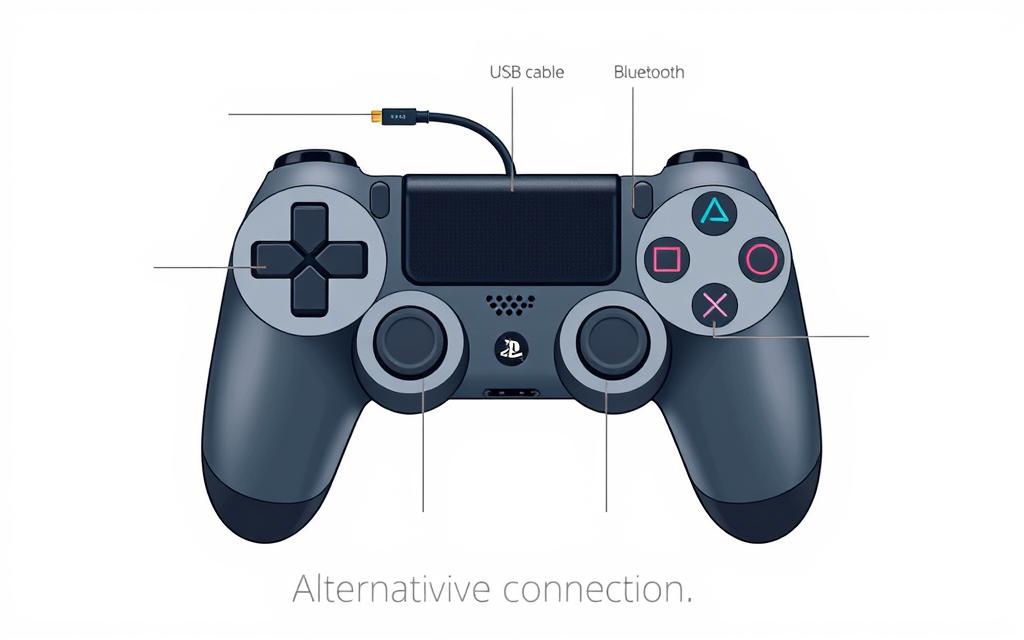
When facing connectivity issues with your PS4 controller, exploring alternative connection methods can be a practical solution. Besides using Bluetooth, you can connect your controller to the PS4 via a USB cable, providing a stable and reliable connection.
Using USB-Only Mode
To enable USB-only mode, navigate to the Devices menu on your PS4, select Controllers, and configure your controller to communicate exclusively via USB when connected with a cable. This method is particularly useful when wireless connectivity issues persist.
Re-Pairing Your Controller
If your controller is not connecting properly, re-pairing it with the PS4 might resolve the issue. To do this, go to the Bluetooth Devices list under the Devices menu, select your controller, and choose the “Forget Device” option.
Forgetting the Device
Selecting “Forget Device” will unpair your controller from the PS4. To re-pair, simply connect the controller using a USB cable and press the PS button.
Reconnecting to the PS4
After re-pairing, your controller should be recognized by the PS4. If you continue to experience issues, refer to external guides for additional troubleshooting steps.
Connection Method
Advantages
Disadvantages
USB-Only Mode
Stable connection, bypasses Bluetooth issues
Limited mobility due to wired connection
Bluetooth
Wireless convenience, easy to set up
Potential for interference, connectivity issues
Conclusion
To sum it up, pairing your PS4 controller with your PS4 console is a simple task that involves using a USB cable for the initial connection and then leveraging Bluetooth for wireless connectivity.
Remember, the light bar on your controller indicates connection status and player assignment, making it easier to manage your gaming experience.
By understanding the basics of connecting your PS4 controller, including troubleshooting common issues and utilizing alternative connection methods like USB-only mode, you can enhance your gaming experience and minimize technical disruptions.
FAQ
What is the easiest way to connect my PS4 controller to the PS4 console?
The easiest way is to use a USB cable to connect the controller to the PS4. Simply plug the USB cable into both devices, and the controller will be recognized by the console.
How do I put my PS4 controller in pairing mode?
To put your PS4 controller in pairing mode, press and hold the PS button and the Share button simultaneously for a few seconds until the light bar starts blinking. This indicates that the controller is in pairing mode and ready to be connected to the PS4 via Bluetooth.
What do the different light bar colors on my PS4 controller mean?
The light bar on your PS4 controller indicates the player number assigned to the controller. The colors are assigned as follows: blue for Player 1, red for Player 2, green for Player 3, and purple for Player 4.
Why is my PS4 controller not connecting to my PS4 console?
If your PS4 controller is not connecting to your PS4 console, try resetting the controller by pressing the small reset button on the back of the device. You can also try restarting your PS4 console or checking your USB cable for damage.
Can I connect my PS4 controller to my PS4 console via Bluetooth?
Yes, you can connect your PS4 controller to your PS4 console via Bluetooth. To do this, put the controller in pairing mode and go to the PS4’s Bluetooth settings to select the controller from the list of available devices.
How do I know if my PS4 controller is connected to my PS4 console?
If your PS4 controller is connected to your PS4 console, the light bar on the controller will stop blinking and remain steady. You can also check the PS4’s Bluetooth settings to confirm that the controller is connected.
Factory resetting your PlayStation 4 returns it to its original state, erasing all data and settings. This can be necessary for troubleshooting issues like freezing or crashing, or when selling or trading your console. Before you start, it’s crucial to back up your important data, including game saves and account information, to prevent losing them…
The introduction of the PS5 brought significant advancements in gaming technology, but many gamers wonder if they can use their existing PS4 controllers with the new console. The good news is that it is possible, albeit with some limitations. For those upgrading to the PS5, understanding how to connect their PS4 controller is crucial. According…
With the rapid evolution of video games, the question of whether PS3 games can be played on PS4 has become increasingly relevant. Understanding the Basics of PS3 and PS4 Compatibility Learn More The transition between the PlayStation3 (PS3) and the PlayStation4 (PS4) marked a significant technological leap, leaving many players wondering if they could still…
Gamers often face frustrating issues with their PS4 controllers, disrupting gameplay and causing unnecessary stress. Knowing how to reset your device can be a lifesaver, resolving connectivity problems and unresponsiveness. This guide will walk you through both soft and hard reset methods for your controller, helping you troubleshoot common issues without needing technical expertise. By…
The PS4 controller, also known as the DualShock 4, is a versatile gaming device that can be used with various platforms beyond the PlayStation 4, including PCs and smartphones. To maximize its potential, understanding how to connect it to different devices is crucial. This comprehensive guide will walk you through the process of establishing a…
Pairing your PS4 controller with your console is key for a great gaming time. Knowing how to connect the DualShock 4 is vital. It helps you play smoothly, without breaks. This is true whether it’s your first time or if you’re reconnecting. This guide will walk you through how to properly pair your controller. We’ll…