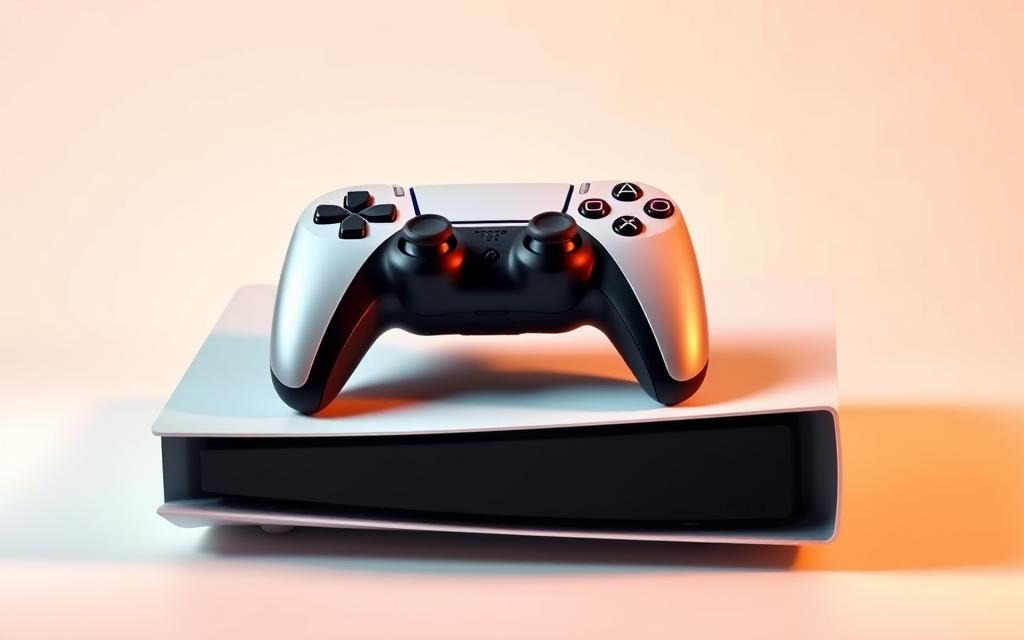
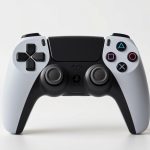
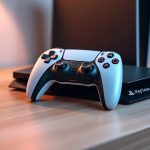
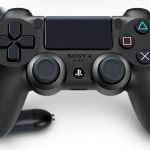
The introduction of the PS5 brought significant advancements in gaming technology, but many gamers wonder if they can use their existing PS4 controllers with the new console. The good news is that it is possible, albeit with some limitations.
For those upgrading to the PS5, understanding how to connect their PS4 controller is crucial. According to a detailed guide on Nacon Gaming, users can connect their controllers via USB or Bluetooth. This compatibility is particularly useful for playing backward-compatible PS4 games on the PS5.
By exploring the official Sony stance and the step-by-step connection process, this article aims to address common issues and provide a comprehensive understanding of using PS4 controllers with the PS5.
Understanding PS4 Controller Compatibility with PS5
As the PS5 continues to gain popularity, the question of PS4 controller compatibility becomes increasingly relevant. Many gamers are eager to know if their existing PS4 controllers can be used with the new console.
What Sony Says About Controller Compatibility
Sony has officially confirmed that PS4 controllers are compatible with the PS5, but with certain limitations. According to Sony, the PS4 controller can be used for playing backward-compatible PS4 games on the PS5. This means that gamers can enjoy their favorite PS4 titles using their existing controllers.
The primary limitation is that PS4 controllers cannot be used to play native PS5 games that require the advanced features of the DualSense controller. Sony’s reasoning behind this limitation is to fully leverage the capabilities of the new DualSense controller, which offers enhanced gaming experiences. Understanding these limitations helps users determine whether connecting their PS4 controller is worthwhile for their specific gaming needs.
In summary, while PS4 controllers can be used with the PS5 for backward-compatible games, they are not compatible with PS5-exclusive titles. This distinction is crucial for gamers to understand to make the most of their gaming experience.
When Can You Use a PS4 Controller on PS5?
The PS5 offers flexibility in controller usage, allowing players to use their PS4 controllers under specific circumstances. This compatibility is particularly useful for players who have invested in PS4 controllers and wish to continue using them with their new console.
Playing Backward-Compatible PS4 Games
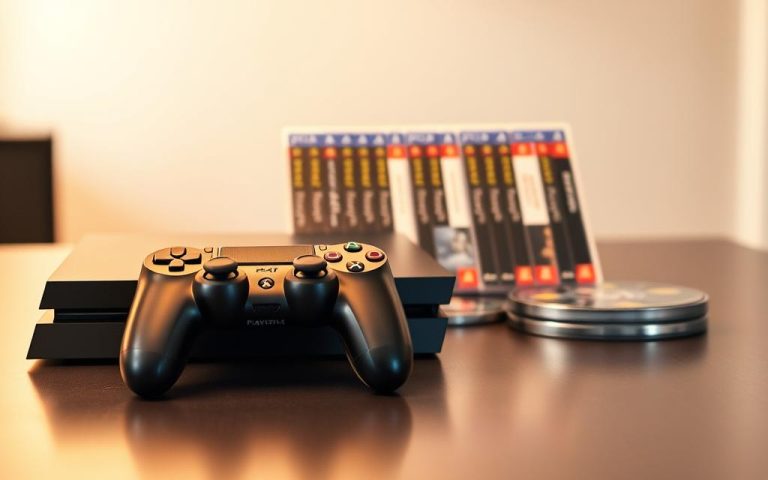
The PS5 is backward compatible with the overwhelming majority of PS4 games. You can play both physical and digital PS4 games on your PS5 using a PS4 controller. For physical games, simply insert the PS4 game disc into your PS5. For digital games, log into your PlayStation Network account on your PS5 and download your PS4 games. The PS5’s Game Boost feature can even enhance the performance of some PS4 games.
Game Type
Compatibility
Controller Support
Physical PS4 Games
Compatible
PS4 Controller Supported
Digital PS4 Games
Compatible
PS4 Controller Supported
Using Remote Play Features
Another scenario where you can use a PS4 controller with your PS5 is through Remote Play. This feature allows you to stream PS5 games to other devices, such as a PC or mobile device, and control them using a PS4 controller. To use Remote Play, you’ll need to configure your PS5 for remote access and connect your PS4 controller to the remote device.
Can You Connect a PS4 Controller to a PS5 for PS5 Games?
While PS4 controllers can be connected to the PS5, there’s a crucial limitation when it comes to playing PS5 games. The PS5’s advanced features, particularly those utilized by PS5 games, require the DualSense controller.
Why PS5 Games Require DualSense Controllers
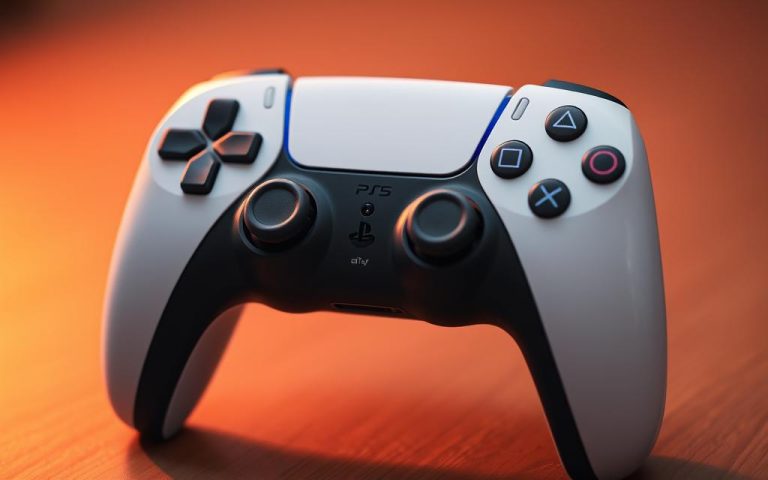
PS5 games are designed to take full advantage of the DualSense controller’s advanced features, such as haptic feedback and adaptive triggers. These features significantly enhance gameplay, providing a more immersive experience.
DualSense Features Missing from PS4 Controllers
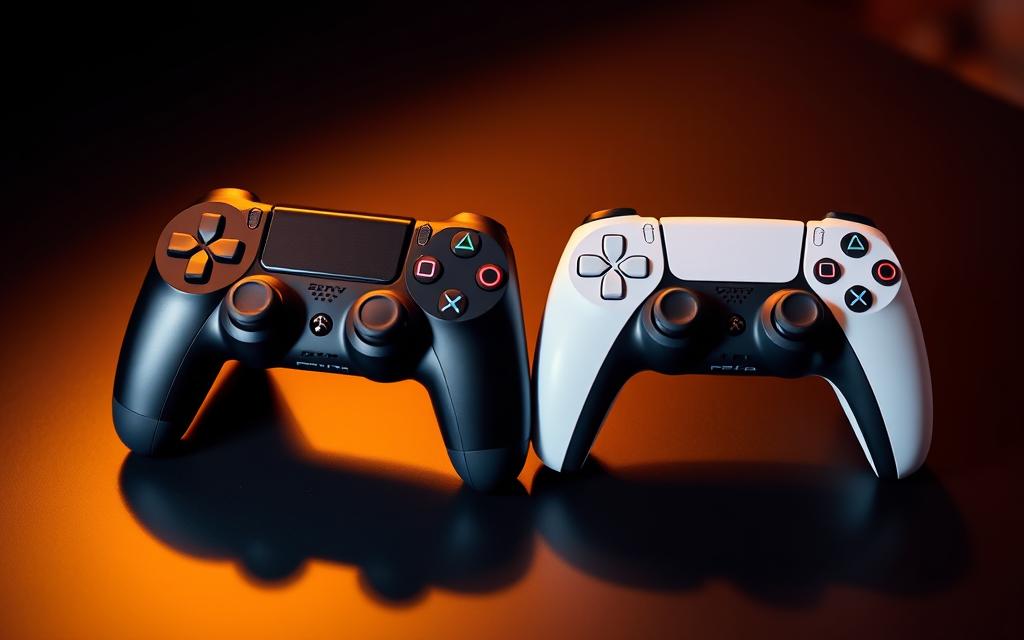
The DualShock 4, or PS4 controller, lacks the innovative features of the DualSense. Key missing features include haptic feedback, adaptive triggers, and a built-in microphone. This table summarizes the main differences:
Feature
DualSense (PS5 Controller)
DualShock 4 (PS4 Controller)
Haptic Feedback
Yes
No
Adaptive Triggers
Yes
No
Built-in Microphone
Yes
No
As shown, the DualSense controller offers several enhancements over the PS4 controller, making it essential for PS5 games.
What You’ll Need Before Starting
To successfully connect your PS4 controller to your PS5, you’ll need a few essential items. First, let’s look at the required equipment.
Required Equipment for Connection
You’ll need a micro-USB cable to establish a wired connection between your PS4 controller and PS5. If you don’t have one, you can purchase it online or at a local department store. Additionally, ensure your controller is properly charged using the appropriate charging accessories.
Checking Controller Condition
Before attempting to connect, verify that your PS4 controller is in good working condition. Check the battery health, ensure all buttons are functioning correctly, and inspect the overall physical condition. It’s also a good idea to check for any available firmware updates for your controller.
Equipment
Purpose
Micro-USB Cable
Wired Connection
Charging Accessories
Controller Charging
Firmware Updates
Controller Maintenance
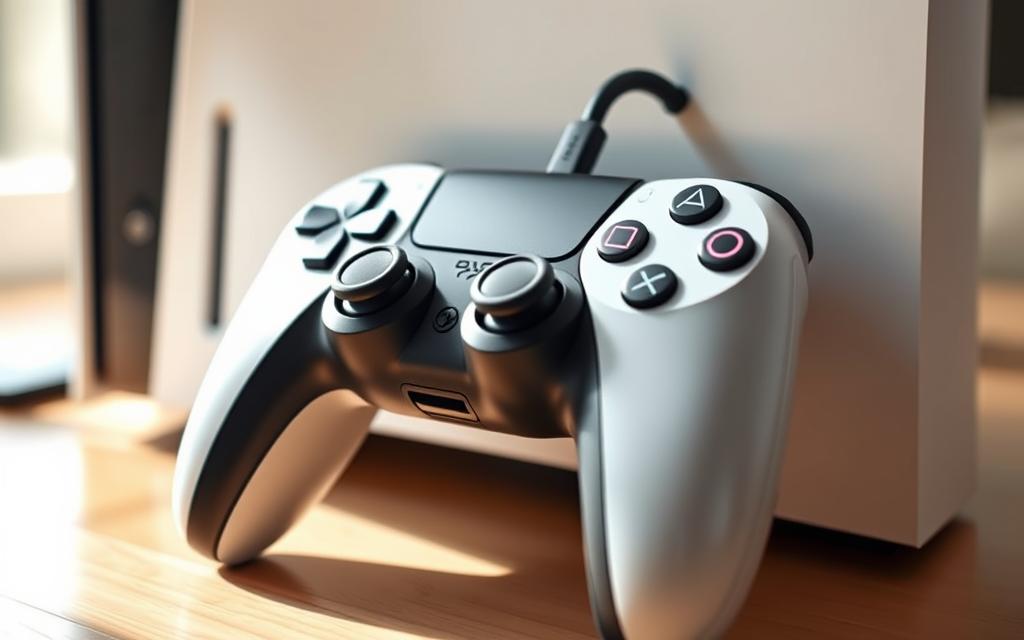
Connecting Your PS4 Controller via USB Cable
The easiest way to connect your PS4 controller to the PS5 console is through a wired connection using a USB cable. This method is not only straightforward but also reliable, making it ideal for initial setup or for those who prefer a stable connection.
Step-by-Step Wired Connection Process
To connect your PS4 controller to your PS5 via USB, follow these steps:
Ensure your PS5 console is turned on.
Connect the PS4 controller to the PS5 using a USB cable. Make sure to use a compatible USB port on the PS5.
Press the PS button on the controller to initiate the connection.
Verifying Successful Connection
Once connected, verify that the PS4 controller is recognized by the PS5. You can do this by checking the controller lights and on-screen indicators. If the connection is successful, you can then disconnect the USB cable and use the controller wirelessly if desired.
Connecting Your PS4 Controller via Bluetooth
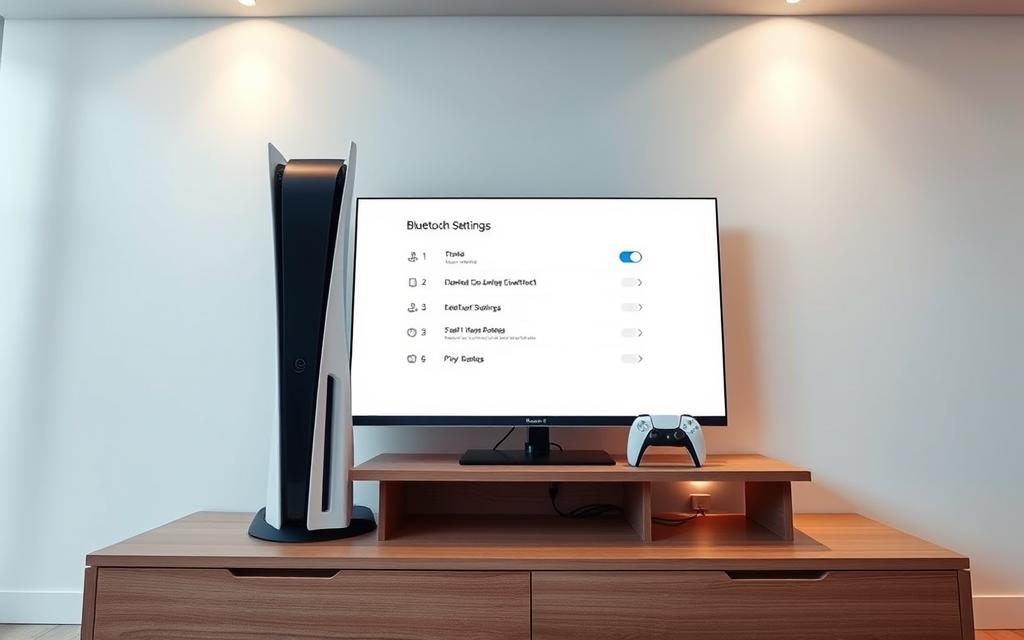
The PS5 supports Bluetooth connectivity, allowing you to pair your PS4 controller wirelessly. This feature provides more flexibility and reduces clutter.
Accessing PS5 Bluetooth Settings
To start, navigate to the “Settings” menu on your PS5. Then, select “General” and proceed to “Bluetooth Accessories.” This will allow you to view available Bluetooth devices.
Putting Your Controller in Pairing Mode
To put your PS4 controller in pairing mode, simultaneously hold the SHARE and PS buttons until the controller light starts flashing. This indicates that it’s ready to be paired.
Completing the Wireless Connection
Once your controller is in pairing mode, select it from the list of available Bluetooth devices on your PS5. This will complete the pairing process, and you’ll be able to use your PS4 controller wirelessly.
It’s worth noting that while Bluetooth connectivity is convenient, it may introduce some latency compared to a wired connection. Ensure your controller is sufficiently charged to avoid interruptions during use.
Connection Method
Latency
Convenience
Wired
Low
Less Convenient
Bluetooth
Potentially Higher
More Convenient
Using PS4 Controllers for Multiplayer Gaming
For gamers wondering about using PS4 controllers in multiplayer mode on the PS5, the good news is that it’s entirely possible. The PS5 supports up to four controllers simultaneously, whether they’re DualSense or DualShock 4 controllers used for backward-compatible PS4 games.
Maximum Number of Connected Controllers
The PS5 allows a maximum of four controllers to be connected at any given time. This applies to both PS5’s DualSense and PS4’s DualShock 4 controllers when playing backward-compatible games.
Mixing PS4 and PS5 Controllers
You can mix PS4 and PS5 controllers for local multiplayer gaming on the PS5. For backward-compatible PS4 games, both DualShock 4 and DualSense controllers can be used together. However, it’s essential to note that feature disparities between the two controller types might affect gameplay.
Controller Type
Compatibility
Features
DualShock 4
Backward-compatible PS4 games
Limited to PS4 game features
DualSense
PS5 and backward-compatible PS4 games
Advanced haptic feedback, adaptive triggers
When using multiple controllers, the PS5 identifies and differentiates between them, allowing for a seamless gaming experience. This flexibility is particularly valuable for families or groups looking to maximize their existing controller collection for multiplayer sessions.
Troubleshooting Common Connection Issues
Troubleshooting common connection issues is crucial for a seamless gaming experience with your PS4 controller on PS5. When you encounter problems, it’s essential to identify the root cause and apply the appropriate solution.
Controller Won’t Connect or Pair
If your PS4 controller won’t connect or pair with your PS5, try the following steps:
Check if your controller has a low battery. Give it a quick charge for about 30 minutes using a working USB cable.
Try using a different USB port on the PS5 to rule out any issues with the current port.
Perform a manual reset by pressing the small reset button on the back of your controller for about five seconds using a paperclip.
Controller Disconnects Frequently
Frequent disconnections can be frustrating. To resolve this issue:
Ensure you’re within 10 meters of the PS5.
Check for any obstacles between the controller and the console that might be causing interference.
Turn off any nearby Bluetooth devices that could be interfering with the connection.
Buttons Not Responding Properly
If the buttons on your PS4 controller are not responding correctly:
Check for any debris or dust that might be affecting the buttons.
Try resetting the controller as described earlier.
If the issue persists, consider replacing the controller.
Issue
Solution
Controller won’t connect
Charge the controller, try a different USB port, or reset the controller.
Frequent disconnections
Check distance, remove obstacles, and turn off nearby Bluetooth devices.
Buttons not responding
Clean the controller, reset it, or consider replacement.
Setting Up Remote Play with PS4 Controllers
For those who prefer using a PS4 controller, the PS5’s Remote Play feature offers a workaround to play PS5 games on various devices. This feature allows gamers to stream PS5 games to other devices, such as PCs, Macs, smartphones, or tablets, and use their PS4 controller for gaming.
Configuring Your PS5 for Remote Play
To enable Remote Play on your PS5, navigate to ‘Settings’, then ‘System’, and finally ‘Remote Play’. Turn on the ‘Enable Remote Play’ option. This step is crucial for allowing your PS5 to stream games to other devices.
Connecting Your Controller to Remote Devices
Next, download the ‘PS Remote Play’ app on your chosen device. Ensure that both your PS5 and the device are connected to the same Wi-Fi network. Then, connect your PS4 controller to the device via USB cable or Bluetooth. Launch the Remote Play app, log in with your PSN account, and select your PS5 console from the list to start gaming.
By following these steps, you can enjoy PS5 games on various devices using your PS4 controller, providing a flexible gaming experience.
Enable Remote Play on your PS5 through the system settings.
Download and install the PS Remote Play app on your device.
Connect your PS4 controller to the device via USB or Bluetooth.
Launch the Remote Play app and log in with your PSN account.
Conclusion
In summary, PS4 controllers can be used with PS5 consoles, primarily for backward-compatible game titles and Remote Play. While there are limitations, particularly with PS5 games requiring DualSense controllers for full functionality, the ability to use existing PS4 controllers offers cost savings and convenience, especially for multiplayer sessions. You can connect your PS4 controller via USB cable or Bluetooth, making it easy to play your favorite PS4 game titles on the PS5. As the PlayStation ecosystem evolves, understanding these compatibility nuances and connection methods will enhance your gameplay experience.
FAQ
Is my PS4 controller compatible with my PS5 console?
Yes, your PS4 controller is compatible with your PS5 console, but only for playing backward-compatible PS4 games or using Remote Play features.
How do I connect my PS4 controller to my PS5 via USB?
To connect your PS4 controller to your PS5 via USB, simply plug in the USB cable into both devices, and the PS5 will recognize the controller.
Can I use my PS4 controller to play PS5 games?
No, PS5 games require the use of a DualSense controller, as they utilize features not available on the PS4 controller.
How many PS4 controllers can I connect to my PS5 at the same time?
You can connect up to four controllers to your PS5, regardless of whether they are PS4 or PS5 controllers, for multiplayer gaming.
Why won’t my PS4 controller connect to my PS5 via Bluetooth?
Ensure that your PS4 controller is in pairing mode by pressing and holding the PS and Share buttons until the light bar flashes. Then, go to your PS5’s Bluetooth settings to complete the connection.
Can I mix PS4 and PS5 controllers for multiplayer gaming?
Yes, you can mix PS4 and PS5 controllers for multiplayer gaming, as long as you have not exceeded the maximum limit of four connected controllers.
What should I do if my PS4 controller disconnects frequently?
Try restarting your PS5 console, checking for any issues with the controller’s battery or USB connection, or resetting the controller by pressing the small reset button on the back.
How do I configure my PS5 for Remote Play with a PS4 controller?
To configure your PS5 for Remote Play, go to the Settings menu, select “Remote Play,” and follow the on-screen instructions to connect your PS4 controller to your remote device.
Are there any issues with using a PS4 controller on PS5?
Some users may experience issues with button mapping or controller responsiveness, but these can often be resolved by updating the controller firmware or adjusting the PS5’s settings.
The transition from PlayStation3 to PlayStation4 was a significant technological leap, raising questions about the compatibility of PS3 games on the new console. The main issue lies in the different hardware architectures of the two consoles. The PS3 used a Cell processor, whereas the PS4 adopted an AMD x86-64 architecture, making direct compatibility challenging. However,…
The arrival of the PlayStation5 marked a significant milestone in the gaming world, offering enhanced graphics capabilities and innovative features. Many gamers who already own DualShock4 controllers for their PS4 consoles wonder about their compatibility with the newer system. The PS5 supports the use of PS4 controllers in certain situations, but there are limitations to…
Gaming on a computer can be a vastly different experience compared to using a console. While traditional mouse and keyboard setups are common, some games are more enjoyable with a controller. Using a PS4 controller with your PC can enhance your gaming experience, offering more comfort and better control for certain types of games. This…
The PS4 controller is more than just a peripheral for your PlayStation 4; it’s a versatile device compatible with various platforms, including PCs and smartphones. Despite the rise of the PS5, many gamers still rely on their PS4 or its controller for gaming. However, setting up or reconnecting your PS4 controller can sometimes be problematic….
Connecting a new PS4 controller to your PlayStation 4 console is a straightforward process. To start, ensure your console is turned on. Then, use a micro-USB cable to connect your DualShock 4 controller to the console. Press the central PS button on the controller, and the light bar will indicate the connection status. You can…
Gaming enthusiasts, particularly those in the UK, are always on the lookout for ways to enhance their gaming experience. Using a PS4 controller can significantly improve comfort and efficiency, whether you’re gaming on a console or other devices. A controller like Sony’s DualShock4 features advanced technology, including motion sensors and customizable buttons, making it ideal…