Factory resetting a PlayStation 4 is a straightforward process that restores the console to its original state, erasing all data in the process.
This comprehensive guide will walk you through the steps to factory reset your PS4, whether you’re troubleshooting issues, preparing it for sale, or starting fresh after purchasing a used system. You can find more detailed instructions on the process on our website.
Before you begin, it’s essential to understand what data will be erased and what preparations you need to make to avoid losing important information. Our guide covers two primary methods for factory reset: through the Settings menu and using Safe Mode.
Understanding PS4 Factory Reset
Understanding the factory reset process for your PS4 is essential for troubleshooting and maintenance. A factory reset is a comprehensive process that returns your PS4 console to its original factory condition, removing all personal data, settings, and downloaded content.
What Is a Factory Reset?
A factory reset comes in two different forms: Restore Default Settings and Initialize PS4. Restore Default Settings keeps your games and saved data while reverting system settings to their original state. Initialize PS4, on the other hand, completely wipes all data, returning your console to its original state. This means removing all user accounts, saved games, screenshots, video clips, downloaded games, and personal settings.
You should consider a factory reset in several scenarios: when preparing to sell or gift your console, resolving persistent system errors or performance issues, fixing boot problems, or removing potential malware from a used PS4. However, a factory reset should be considered a last resort after trying less drastic troubleshooting methods like rebuilding the database, clearing cache, or updating system software.
Common scenarios for a factory reset include selling or gifting your PS4.
Resolving persistent system errors or performance issues.
Fixing boot problems or removing malware.
Preparing Your PS4 for Factory Reset
A factory reset can be a daunting process, but with proper preparation, you can avoid potential pitfalls. Before initiating the reset, it’s essential to take a few critical steps to ensure a smooth transition and prevent loss of valuable data.
Backing Up Important Data
Backing up your PS4 data is the first and most crucial step. You can use either PlayStation Plus cloud storage or a USB drive for this purpose. To back up your data, you need to prepare a USB drive with enough storage space.
Using PlayStation Plus Cloud Storage
PlayStation Plus subscribers can utilize their 100GB of cloud storage. To enable automatic uploads, navigate to Settings > Power Saving Settings > Set Features Available in Rest Mode > Stay Connected to the Internet, followed by Settings > Application Data Management > Auto-Upload > Enable Automatic Uploads.
Using a USB Drive for Backup
For those without PlayStation Plus or with large amounts of data, backing up to a USB drive formatted as FAT32 or exFAT is essential. Connect the drive to your PS4, navigate to Settings > System > Back Up and Restore, select Back Up, choose the data you want to save, name your backup file, and complete the backup process.
Deactivating Your PlayStation Network Account
If you plan to sell or give away your PS4, deactivating your PlayStation Network account is a critical security step. Navigate to Settings > Account Management > Activate as Your Primary PS4 > Deactivate to complete this process.
Disconnecting External Devices
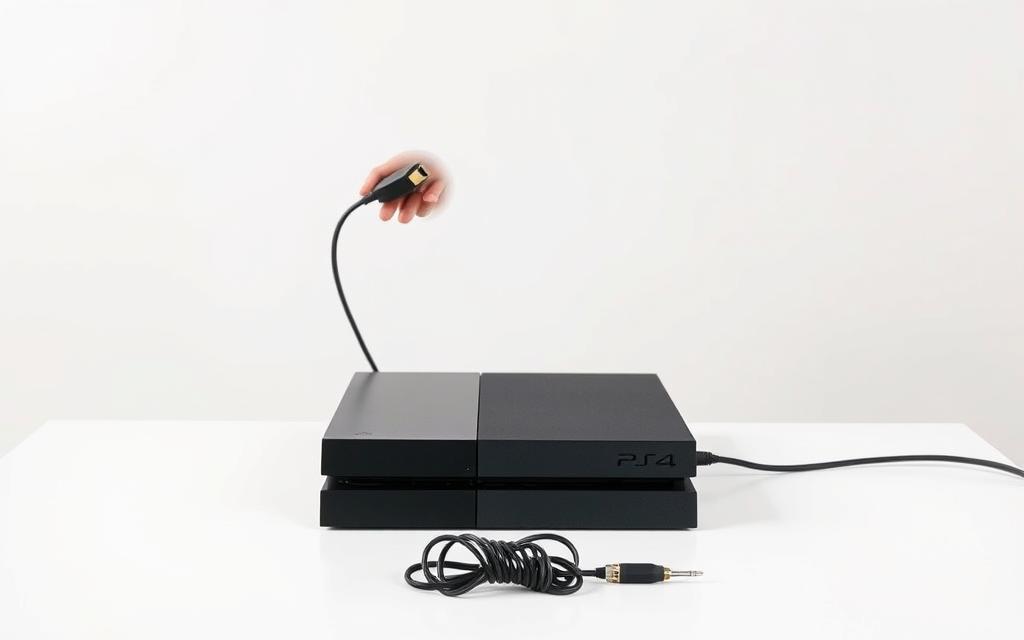
Before factory resetting, ensure all external devices are safely disconnected. Access the Quick Menu by holding the PS button, select Sound/Devices, choose Stop Using This Extended Storage, and wait for confirmation before physical removal.
Canceling Subscriptions (If Necessary)
If you’re permanently parting with your PS4, consider canceling any active subscriptions. Sign into Account Management in a browser, select the subscription from the left menu, and click Cancel Subscription.
How to Factory Reset PS4 from Settings Menu
Resetting your PS4 to its factory settings is a straightforward process when done through the Settings menu. This method is ideal when your console is functioning properly, and you can access the system interface.
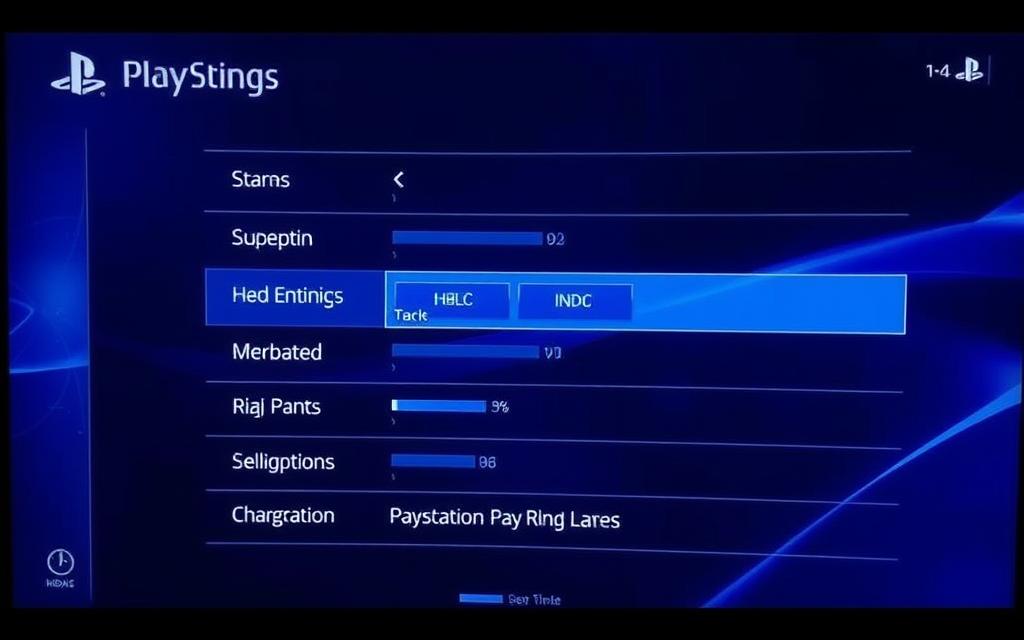
To begin the factory reset process, navigate to the PS4 main menu and select “Settings.” Then, scroll down to find the “System” option, which contains all the system management tools. Within the System menu, locate and select “Initialize PS4” at the bottom of the list.
Choosing the Right Reset Option
You’ll be presented with two primary reset options: “Restore Default Settings” and “Initialize PS4.” The choice between these options depends on your specific needs.
Restore Default Settings Option
This option resets system settings to their default values while preserving your data. It’s useful if you’re experiencing software issues but want to keep your games and saved data.
Full Initialization Option
For a complete factory reset, select the “Full” initialization option. This process performs a thorough wipe of all content and settings, returning your PS4 to its original state. Note that this method takes several hours and should be used if you’re selling your console or experiencing persistent problems.
Step-by-Step Reset Process
To factory reset your PS4, follow these steps:
1. Go to “Settings” > “System” on your PS4 main menu.
2. Scroll down to the bottom and select “Initialize PS4.”
3. Choose “Full” factory reset and then hit “Next.”
4. Confirm your factory reset by selecting “Yes.”
5. Wait for the factory reset process to be completed. Your PS4 will restart automatically once it’s done.
During the reset process, it’s crucial not to power off your PS4 or disconnect it from power, as this could potentially damage your system or corrupt the operating system. The process may take several hours, depending on the amount of data stored on your console.
When your PS4 is experiencing serious system errors, using Safe Mode to factory reset can be a viable solution. Safe Mode provides an alternative method for factory resetting your PS4 when you cannot access the normal system interface due to serious system errors, boot problems, or software corruption.
When to Use Safe Mode for Reset
Safe Mode is particularly useful when your PS4 won’t start normally, freezes on the PlayStation logo, or displays error messages that prevent normal operation. This method allows you to restore your console to its original settings even when the standard reset process is inaccessible.
Entering Safe Mode on Your PS4
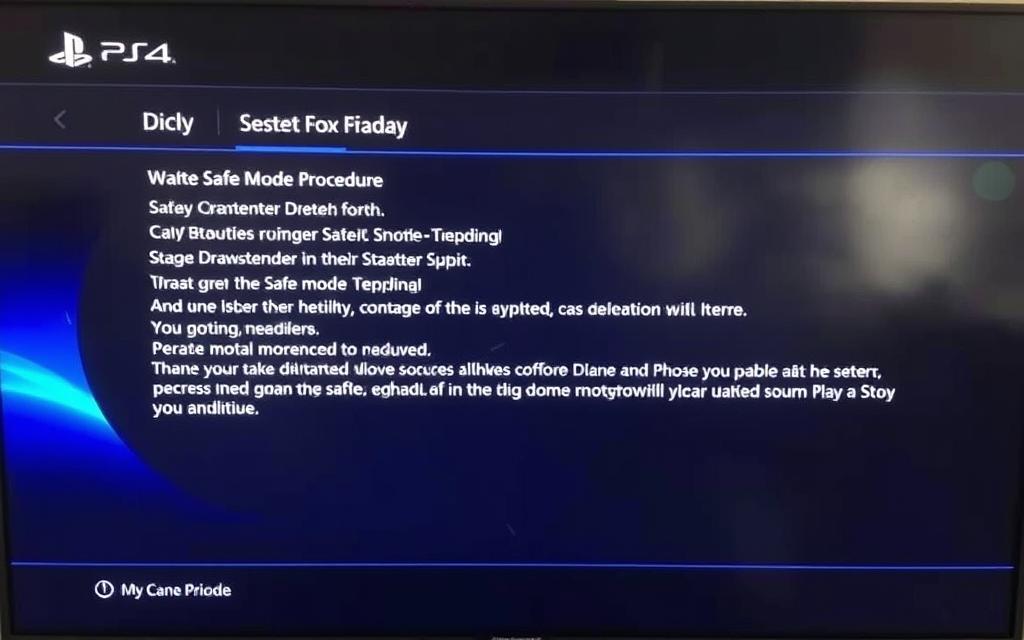
To enter Safe Mode, first completely power down your PS4 by holding the power button until you hear two beeps (approximately 7 seconds), then wait for the system to fully shut down. With the console off, press and hold the power button again until you hear two beeps – the first immediately and the second about 7 seconds later – then release the button to boot into Safe Mode.
Safe Mode Reset Options Explained
The Safe Mode menu offers several reset options. The two most relevant are “Initialize PS4” (option 7) which performs a standard factory reset, and “Initialize PS4 (Reinstall System Software)” (option 8) which completely wipes the system and requires reinstalling the operating system.
Initialize PS4 Option
The “Initialize PS4” option is suitable for most situations and functions similarly to the Settings menu method. It resets your PS4 to its original settings without reinstalling the system software.
Initialize PS4 (Reinstall System Software) Option
The “Initialize PS4 (Reinstall System Software)” option is more drastic and should be used only when other methods fail. It completely erases the system software, requiring you to reinstall it afterward. To use this option, you’ll need to prepare a USB drive with the PS4 system software downloaded from the official PlayStation website before beginning the process.
By following these steps and choosing the appropriate reset option in Safe Mode, you can successfully factory reset your PS4 and resolve serious system issues.
After the Factory Reset: Setting Up Your PS4
After completing a factory reset on your PS4, you’ll need to set it up again from scratch. This involves several key steps to get your console up and running with all your necessary data and applications.
Reconnecting to the Internet
To start, you’ll need to reconnect your PS4 to the internet. Navigate to Settings > Network > Set Up Internet Connection and choose between Wi-Fi or a wired connection. Follow the on-screen prompts to complete your network configuration.
Reinstalling System Software (If Necessary)
If your reset required system software reinstallation, you’ll need to follow the on-screen instructions to install the operating system from your prepared USB drive containing the official PlayStation system software.
Restoring Your Backed Up Data
To restore your backed up data, sign in to your PSN account, then go to Settings > Application Data Management > Saved Data in Online Storage > Download to System Storage, and select the saved data you wish to restore. For data backed up to a USB drive, insert it into your PS4, navigate to Settings > System > Back Up and Restore > Restore PS4, and follow the prompts.
Reinstalling Games and Applications
Reinstall your games and applications by either inserting physical game discs or redownloading digital purchases from your library. Select Library from the main menu, find your previously purchased content, and initiate the download. Be aware that installations and downloads may take significant time depending on your internet connection speed.
Conclusion
In summary, this guide has provided a comprehensive overview of how to factory reset your PS4, covering two reliable methods: through the Settings menu and via Safe Mode. By following the steps outlined, you can return your console to its original factory state, resolving a wide range of system issues. It’s crucial to back up your data before initiating the reset process to prevent losing valuable information. The factory reset process may take several hours, depending on your console’s storage and data. After the reset, you’ll need to set up your PS4 again, reinstall games, and restore your backed-up data. This guide has equipped you with the necessary steps to successfully reset your PS4 and get back to gaming with optimal performance.
FAQ
What happens to my saved data during a PS4 factory reset?
During a PS4 factory reset, all saved data, games, and applications are deleted from the console. It’s essential to back up your data before initiating the reset process.
Can I factory reset my PS4 without losing my games and data?
No, a factory reset will erase all data on the console. However, you can back up your data to an external storage device or USB drive before resetting.
How long does a PS4 factory reset take?
The time it takes to complete a PS4 factory reset can vary, but it usually takes several hours depending on the amount of data being erased and the console’s storage space.
Will a factory reset remove my PlayStation Network account?
A factory reset will not remove your PlayStation Network account, but you may need to reactivate it after the reset. It’s recommended to deactivate your account before resetting.
Can I stop a PS4 factory reset once it’s started?
No, once a PS4 factory reset is initiated, it cannot be stopped. It’s crucial to back up your data and ensure you’re ready for the reset before starting the process.
Do I need to reinstall system software after a factory reset?
In some cases, you may need to reinstall the system software after a factory reset. Ensure you have a stable internet connection to download the necessary software.
How do I back up my PS4 data before a factory reset?
You can back up your PS4 data by going to the Settings menu, selecting “Application Saved Data Management,” and then choosing “Saved Data in System Storage” to back up your data to a USB storage device.
Can I use a USB drive to back up my PS4 data?
Yes, you can use a USB drive to back up your PS4 data. Ensure the drive is compatible with the PS4 and has enough storage space to hold your backed-up data.
The arrival of the PlayStation 5 marked a significant milestone in the gaming world, offering enhanced graphics capabilities and innovative features. Many gamers who already own DualShock 4 controllers for their PS4 consoles wonder if they can use them on their new PS5. The answer is yes, but with some limitations. For those looking to…
With the rapid evolution of video games, the question of whether PS3 games can be played on PS4 has become increasingly relevant. Understanding the Basics of PS3 and PS4 Compatibility Learn More The transition between the PlayStation3 (PS3) and the PlayStation4 (PS4) marked a significant technological leap, leaving many players wondering if they could still…
The transition from PlayStation3 to PlayStation4 was a significant technological leap, raising questions about compatibility between the two console generations. Many gamers wonder if they can access their favorite PS3 titles on PS4 without purchasing remasters or new versions. The difference in hardware and architecture between the consoles makes the situation complex. Understanding the technical…
Factory resetting your PlayStation 4 returns it to its original state, erasing all data and settings. This can be necessary for troubleshooting issues like freezing or crashing, or when selling or trading your console. Before you start, it’s crucial to back up your important data, including game saves and account information, to prevent losing them…
The PS5 DualSense controller represents a significant upgrade in gaming hardware, boasting advanced features and an ergonomic design. Despite its compatibility limitations, many gamers are eager to utilize it with their existing PS4 console. Sony’s official FAQ page states that the DualSense wireless controller is not compatible with the PS4 console. However, gamers have discovered…
The gaming world is constantly evolving, with new console generations emerging regularly. As technology advances, players often wonder about the compatibility of their favorite games with newer systems. One common question is whether it’s possible to enjoy PS3 games on the PS4 console. The transition from PS3 to PS4 marked a significant technological leap, leaving…