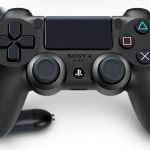
Gamers often face frustrating issues with their PS4 controllers, disrupting gameplay and causing unnecessary stress. Knowing how to reset your device can be a lifesaver, resolving connectivity problems and unresponsiveness.
This guide will walk you through both soft and hard reset methods for your controller, helping you troubleshoot common issues without needing technical expertise. By following these steps, you can extend the life of your PS4 controller and enhance your gaming experience.
Most controller issues can be resolved through proper reset techniques, saving you time and money on replacements. Our comprehensive guide covers more than just basic resets, providing you with the tools to tackle complex problems and get back to gaming.
Common PS4 Controller Issues
PS4 controller issues can be frustrating, but understanding the common problems can help you troubleshoot effectively. The DualShock 4 controller, like any other device, can experience a range of issues that affect its performance.
Why Your Controller Stops Working
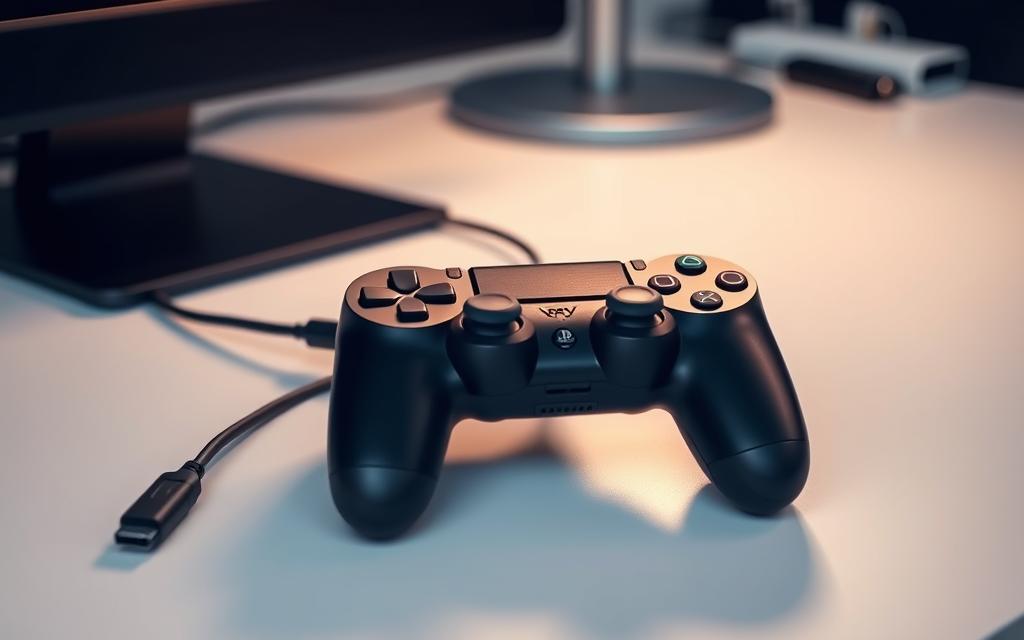
There are several reasons why your PS4 controller may stop working. The controller’s battery might be dead or nearly out of juice, or it could be too far from your PlayStation, causing a loss of Bluetooth connection. Additionally, the Micro-USB cable might be faulty, or the controller could have been paired with another device.
The PS button on the controller may be malfunctioning, or the controller could have turned off due to the PlayStation’s Power Save settings. Understanding these potential causes can help you identify the problem.
Signs You Need to Reset Your Controller
If your controller is experiencing erratic behavior, such as input lag or complete unresponsiveness, it may be a sign that you need to reset it. Other indicators include controller drift or button sticking issues. Distinguishing between temporary glitches and more serious hardware failures is crucial in determining whether a reset or repair is needed.
Environmental factors, such as interference from other devices, can also impact your controller’s performance. Recognizing these signs and understanding the potential causes can help you take the necessary steps to resolve the issue.
How to Reset PS4 Controller: Soft Reset Method
A soft reset is often the simplest way to resolve issues with your PS4 controller. This process refreshes the connection between your controller and console without erasing custom settings.
What is a Soft Reset
A soft reset is a troubleshooting method that restores your PS4 controller to its default state without losing saved settings or configurations. It’s a useful step before considering a more intensive reset.
Step-by-Step Soft Reset Instructions
To perform a soft reset, you’ll need a second working DualShock4 controller. Navigate to Settings > Devices > Bluetooth Devices on your PlayStation dashboard. Select your inactive DualShock4 controller from the list, then press the Options button on your working controller and select Forget Device. After removing the inactive controller, connect the malfunctioning controller to your PS4 with a USB cable, then turn the console back on. Press the PS button on your malfunctioning controller to log back in.
Step
Action
1
Navigate to Settings > Devices > Bluetooth Devices
2
Select your inactive DualShock4 controller
3
Forget the inactive device
4
Connect the malfunctioning controller via USB
When to Use a Soft Reset
Use a soft reset when your PS4 controller experiences minor issues like temporary disconnections or input problems. For more information on troubleshooting your PS4 controller, you can visit this helpful resource.
Performing a Hard Reset on Your PS4 Controller
A hard reset is a troubleshooting step that can resolve issues with your PS4 controller by restoring it to its factory settings. This process does not affect your saved game data.
What is a Hard Reset
A hard reset completely restores your PS4 controller to its original factory settings, clearing any internal memory issues and refreshing firmware connections. This can resolve connectivity and responsiveness problems.
Tools You’ll Need
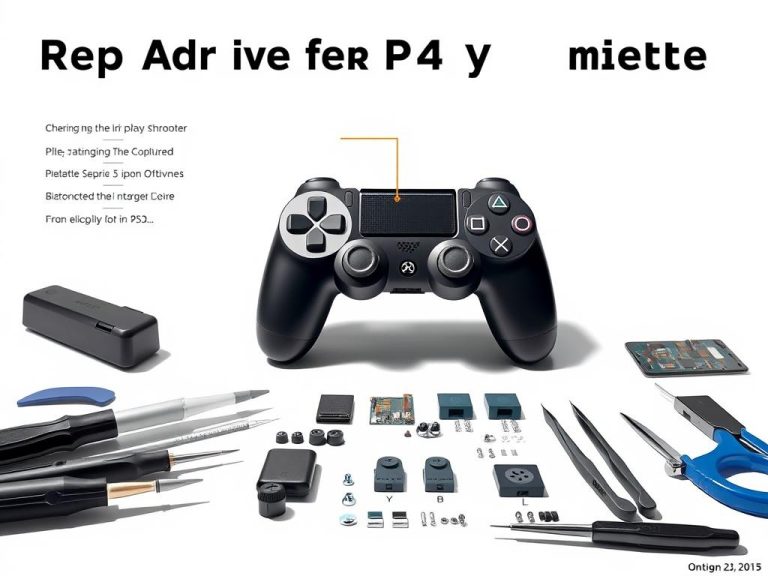
To perform a hard reset, you’ll need a few simple tools: an unfolded paper clip or a straight pin to access the reset button, and a Micro-USB cable to connect your controller to your PS4.
Step-by-Step Hard Reset Instructions
To hard reset your PS4 controller, follow these steps:
Turn off your PS4 and unplug the controller.
Locate the small reset button on the back of the controller near the L2 button.
Use a paper clip or pin to press and hold the reset button for at least 6 seconds.
Release the button, wait a few seconds, then connect the controller to your PS4 using a Micro-USB cable.
Press the PS button to pair the controller.
Additional Troubleshooting Tips
For persistent PS4 controller issues, additional troubleshooting techniques can help identify and resolve the problem. Beyond the basic reset methods, there are several other steps you can take to diagnose and potentially fix your controller.
Charging Issues and Solutions
If your PS4 controller is not holding a charge, try plugging it in via its Micro-USB cable and giving it time to restore power. Ensure it’s fully off when not in use to prolong battery life. A typical PS4 controller lasts around eight hours on a single charge, but sometimes it can drain much faster.
Connection Problems
Connection issues between your controller and console can be caused by interference or Bluetooth connectivity problems. Try moving closer to your console or removing other devices that might be causing interference to improve the connection.
How to Test Your PS4 Controller
You can test your PS4 controller using a Windows computer to diagnose specific malfunctions. Connect your controller via a USB cable, access the Control Panel, and use the Game Controller Settings to test the functionality of your controller’s components.
By following these additional troubleshooting tips, you can identify and potentially resolve issues with your PS4 controller, ensuring a smoother gaming experience.
Conclusion
To summarize, resetting your PS4 controller is a simple and effective solution to many common problems. This guide has covered both soft and hard reset methods to troubleshoot issues with your PS4 controller. By trying the simpler soft reset first, you can often resolve connectivity and responsiveness issues. Regular maintenance and proper handling can prevent many controller problems from developing. If issues persist, it may be time to consider purchasing a new controller. Proper care and maintenance can extend the lifespan of your PS4 controller. Most PS4 controller problems can be resolved at home without technical expertise. By following these steps, you can save time and money, ensuring a properly functioning controller enhances your overall gaming experience on PlayStation4.
Resetting your controller is often the quickest and most cost-effective solution before considering replacement. With the right settings and a little patience, you can get back to enjoying your favorite game.
FAQ
What should I do if my PS4 controller is not responding?
Try a soft reset by holding the PS button and the Share button simultaneously for a few seconds. If that doesn’t work, try a hard reset by connecting the controller to the console using a USB cable and pressing the reset button on the back.
How do I know if my PS4 controller needs a reset?
If your controller is experiencing issues such as lag, disconnections, or unresponsive buttons, a reset may be necessary. You can also try troubleshooting other potential causes, such as low battery or interference.
Can I reset my PS4 controller without a USB cable?
No, a USB cable is required to perform a hard reset on your PS4 controller. However, you can perform a soft reset without one.
Will resetting my PS4 controller erase my saved data?
No, resetting your PS4 controller will not erase your saved data. The reset process only affects the controller’s settings and connection to the console.
How do I test my PS4 controller after resetting it?
You can test your PS4 controller by connecting it to your console and checking that all buttons and joysticks are functioning properly. You can also try playing a game to ensure that the controller is working as expected.
What are some common issues that can be resolved by resetting my PS4 controller?
Resetting your PS4 controller can resolve issues such as connection problems, lag, and unresponsive buttons. It can also help to resolve issues related to controller synchronization and device interference.
Factory resetting your PlayStation 4 returns it to its original state, erasing all data and settings. This can be necessary for troubleshooting issues like freezing or crashing, or when selling or trading your console. Before you start, it’s crucial to back up your important data, including game saves and account information, to prevent losing them…
The PS4 controller is more than just a peripheral for your PlayStation 4; it’s a versatile device compatible with various platforms, including PCs and smartphones. Despite the rise of the PS5, many gamers still rely on their PS4 or its controller for gaming. However, setting up or reconnecting your PS4 controller can sometimes be problematic….
EA Sports has recently released College Football25, generating significant buzz among football fans. This game marks a major comeback for college football video games after years of absence. With over $500 million in sales within its first month, it’s clear that fans have been eagerly waiting for this release. The new college football video game…
PS4 controller issues can be frustrating for gamers. Luckily, many problems have simple solutions. Let’s explore how to fix common controller troubles. DualShock 4 troubleshooting requires a step-by-step approach. Sticky buttons affect 30% of users, while 25% face connectivity problems1. Most issues can be solved with the right techniques. A well-kept PS4 controller usually lasts…
Transform your computer gaming experience by connecting your DualShock™4 controller to your PC. This simple step can elevate your gaming sessions, providing the comfort and familiarity of console gaming on your computer. Connecting your PS4 controller to your PC can be achieved through various methods, including wired and wireless connections. For a seamless gaming experience,…
The PS5 DualSense controller is designed for the latest generation of gaming consoles, but many gamers are wondering if they can use it with their existing PS4 console. According to Sony’s official FAQ page, the DualSense wireless controller is not compatible with the PS4. However, some clever workarounds have been discovered, allowing gamers to utilize…