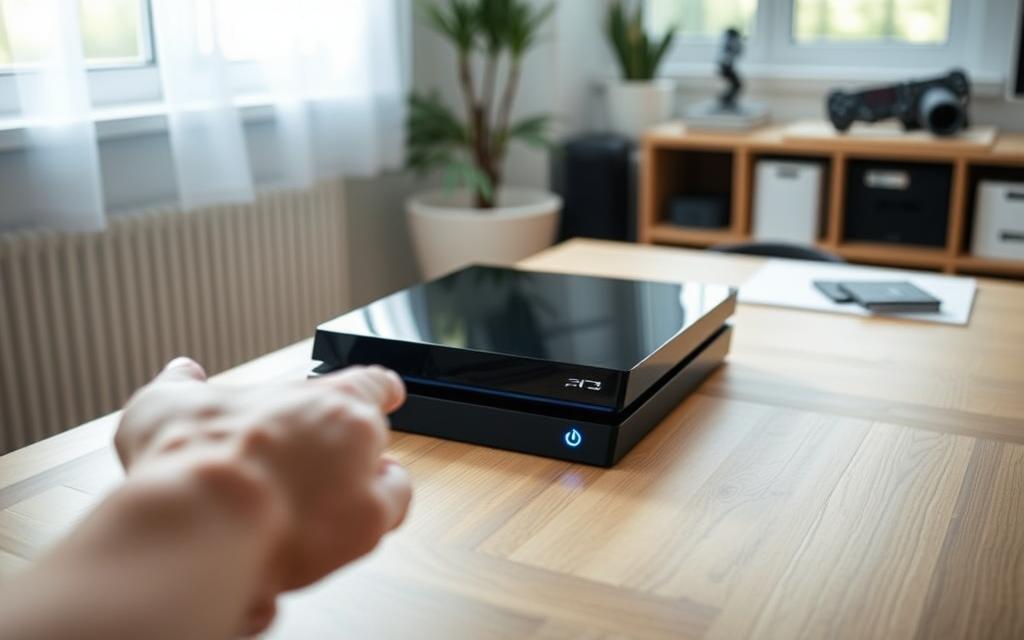
Factory resetting your PlayStation 4 returns it to its original state, erasing all data and settings. This can be necessary for troubleshooting issues like freezing or crashing, or when selling or trading your console.
Before you start, it’s crucial to back up your important data, including game saves and account information, to prevent losing them during the reset process.
This guide will walk you through multiple methods to reset your PS4, including using the settings menu, Safe Mode, and alternatives when your controller isn’t working. By the end, you’ll be able to restore your console to its default settings and get it running smoothly again.
Why You Might Need to Reset Your PS4
Resetting your PS4 can resolve a multitude of issues that may be affecting your gaming experience. Whether you’re dealing with freezing screens, corrupted data, or other system malfunctions, a reset can often provide a straightforward solution.
Common Issues That Can Be Fixed with a Reset
A factory reset PS4 can fix various problems, including:
Freezing or crashing during gameplay
Corrupted game data or saves
System software issues
Network connectivity problems
By performing a reset PS4, you can potentially resolve these issues and restore your console to optimal functioning.
The PS4 offers several reset options, each with varying levels of data removal. Understanding these differences is crucial in choosing the right method for your situation.
A soft reset simply restarts the system without deleting any data, making it useful for minor glitches. Quick initialization, also known as Quick Format, removes user data but keeps the system software intact, offering a faster reset option. On the other hand, Full initialization completely wipes the hard drive and reinstalls the system software, providing the most thorough reset but taking several hours to complete.
Essential Preparations Before You Reset Your PS4
Before you reset your PS4, there are several crucial steps to take. Ensuring you are prepared will make the reset process smoother and help you avoid potential issues.
Backing Up Your Important Data and Game Saves
It’s essential to back up your important data and game saves before resetting your PS4. You can use the cloud storage provided by PlayStation or an external storage device. This way, you can restore your data after the reset.
To back up your data: Go to Settings, then select Application Saved Data Management. From there, you can choose to copy your saved data to the cloud or an external storage device.
Deactivating Your PlayStation Network Account
Deactivating your PlayStation Network (PSN) account is a good practice before resetting your PS4. This step helps in managing your account’s device list and ensures you can reactivate it on your PS4 after the reset.
To deactivate your PSN account: Go to Settings, then select Account Management. Navigate to Activate as Your Primary PS4 and select Deactivate.
Removing External Storage Devices
It’s recommended to remove any external storage devices connected to your PS4 before resetting. This prevents any potential data loss or corruption during the reset process.
Checking Your Controller Functionality
Ensure your controller is functioning correctly before you start the reset process. A faulty controller can complicate the reset procedure.
Test all buttons on your controller to ensure they are responding correctly.
If you’re experiencing connectivity issues, try connecting your controller using a USB cable.
To press button combinations, ensure you’re using the correct sequence as required by the reset process.
Preparation Step
Description
Importance Level
Backing Up Data
Save your game data and important files
High
Deactivating PSN Account
Manage your device list and reactivate later
Medium
Removing External Devices
Prevent data loss or corruption
High
Checking Controller
Ensure the controller is functioning properly
High
How to Reset PS4 to Factory Settings: Step-by-Step Methods
Resetting your PS4 to its factory settings can be a straightforward process if you follow the right steps. This process is essential for troubleshooting persistent issues or preparing your console for sale or transfer to a new owner.
Method1: Resetting Through the PS4 Settings Menu
One of the most common methods to reset your PS4 is through the Settings menu. This method is straightforward and doesn’t require any additional devices.
Navigating to the Initialize Option
To start the reset process, navigate to the PS4’s Settings menu, then select “Initialization.” This option is usually found at the bottom of the Settings list.
Choosing Between Quick and Full Reset
You will be given the option to perform a “Quick” or “Full” initialization. A Quick initialization is faster and sufficient for most cases, while a Full initialization is more thorough but takes longer.
Completing the Reset Process
After selecting your preferred initialization type, follow the on-screen instructions to complete the reset. Your PS4 will restart and display the initial setup screen once the process is complete.
Method2: Resetting Using Safe Mode
If your PS4 is not responding normally, you can try resetting it using Safe Mode. This method is useful when the console is not functioning properly.
How to Access Safe Mode
To access Safe Mode, turn off your PS4, then press and hold the power button until you hear two beeps. Connect your controller using a USB cable and press the PS button.
Safe Mode Reset Options Explained
In Safe Mode, you can choose from several options, including “Restore Default Settings” and “Initialize PS4.” The latter is used for a factory reset.
Executing the Reset in Safe Mode
Select “Initialize PS4” to begin the factory reset process. Follow the on-screen instructions, and your PS4 will restart and complete the reset.
Method3: Resetting Without a Controller
If you don’t have a controller, you can still reset your PS4 using alternative methods.
Using an External Keyboard or Mouse
You can use an external keyboard or mouse to navigate through the PS4 menus. Connect the device via USB, and you can access the Settings menu to perform a factory reset.
Using the PS4 Mobile App
Another option is to use the PS4 mobile app as a virtual controller. Make sure your PS4 and smartphone are connected to the same WiFi network. Download the official PlayStation App on your iOS or Android smartphone to use it as a virtual controller PS4. Ensure both your PS4 and smartphone are connected to the same WiFi network for the app to detect and connect to your console. Use the app’s on-screen controls to navigate through the PS4 menus and access the initialization options in Settings.
Reset Method
Description
Requirements
Settings Menu
Reset PS4 through the Settings menu
Functional PS4, Controller
Safe Mode
Reset PS4 using Safe Mode
PS4, USB Controller
Without Controller
Reset PS4 without a controller
External Keyboard/Mouse or PS4 Mobile App, Same WiFi Network
Conclusion: After Resetting Your PS4
After completing the reset process, your PS4 will be restored to its original settings, ready for a fresh start. Now, you’ll need to reconfigure your console and restore your backed-up data to get back to your gaming routine.
The initial setup process will guide you through connecting to your network, setting the date and time, and signing in to your PlayStation Network account. Make sure to restore your backed-up data to recover your game saves and personal content.
If you reset your PS4 to resolve technical issues, monitor its performance closely in the days following the factory reset to ensure the problems have been resolved. Consider implementing regular maintenance practices, such as rebuilding the database periodically and keeping your system software updated.
Whether you’re selling your PS4 or upgrading your hard drive, the reset process has prepared your console for its next step. By following these steps, you’ve ensured a smooth transition and maintained your console’s performance.
FAQ
What is the difference between a soft reset and a factory reset on my PS4?
A soft reset simply restarts your console, while a factory reset erases all data, restoring your PS4 to its original settings. A factory reset is a more thorough process that deletes all saved data, including game saves and settings.
Will a factory reset delete my game saves?
Yes, a factory reset will delete all data on your PS4, including game saves, unless you back them up to the cloud or an external storage device before resetting.
How do I back up my PS4 data before a factory reset?
You can back up your data by going to the Settings menu, selecting “Application Saved Data Management,” and then choosing “Saved Data in System Storage.” From there, you can upload your data to the cloud or copy it to an external storage device.
Can I reset my PS4 without a controller?
Yes, you can reset your PS4 without a controller by using the power button on the console and a USB cable connected to a computer.
How long does it take to factory reset a PS4?
The time it takes to factory reset a PS4 can vary, but it typically takes several hours, depending on the amount of data being erased.
Will a factory reset fix issues with my PS4’s system software?
A factory reset can resolve issues related to system software, but it may not fix problems with the console’s hardware. If you’re experiencing persistent issues, you may need to contact Sony support for further assistance.
Can I stop a factory reset once it has started?
No, once a factory reset has started, it cannot be stopped. It’s essential to back up your data and ensure you’re ready for the reset before initiating the process.
Connecting a new PS4 controller to your PlayStation 4 console is a straightforward process. To start, ensure your console is turned on. Then, use a micro-USB cable to connect your DualShock 4 controller to the console. Press the central PS button on the controller, and the light bar will indicate the connection status. You can…
Transform your computer gaming experience by connecting your DualShock™4 controller to your PC. This simple step can elevate your gaming sessions, providing the comfort and familiarity of console gaming on your computer. Connecting your PS4 controller to your PC can be achieved through various methods, including wired and wireless connections. For a seamless gaming experience,…
The PS5 DualSense controller is designed for the latest generation of gaming consoles, but many gamers are wondering if they can use it with their existing PS4 console. According to Sony’s official FAQ page, the DualSense wireless controller is not compatible with the PS4. However, some clever workarounds have been discovered, allowing gamers to utilize…
Gaming on PC offers a unique experience, with many players preferring the comfort and precision of a controller over traditional keyboard and mouse setups. The PS4 controller, known for its ergonomic design and intuitive controls, is a popular choice among gamers. Although designed for the Sony PlayStation4, the DualShock4 can be easily connected to a…
Many PlayStation users are eager to know if their PS4 controllers will work with the new PS5 console. The good news is that PS4 controllers are compatible with PS5, but with certain limitations. This guide will walk you through when and how to use your DualShock4 controllers with your PS5, helping you understand the compatibility…
With the rapid evolution of video games, the question of whether PS3 games can be played on PS4 has become increasingly relevant. Understanding the Basics of PS3 and PS4 Compatibility Learn More The transition between the PlayStation3 (PS3) and the PlayStation4 (PS4) marked a significant technological leap, leaving many players wondering if they could still…